Most Windows Server administrators do not lose their week to hard problems. They lose it to the same small, repetitive tasks performed again across a dozen machines: checking service status, rotating logs, pulling event data, provisioning user accounts, and confirming disk space before someone notices it is gone. PowerShell Commands exist to take that repetition off an admin plate. This guide walks through ten PowerShell Commands that cover the tasks Windows Server administrators handle every week, explains why each one matters, shows how to use it safely, and points out where automation genuinely saves time. Whether the server in question sits on premises or on a cloud instance from a Web Hosting Company in India, the same core cmdlets apply.
Every Windows Server administrator has a version of the same week: a service quietly stops; a disk fills up faster than expected, an event log needs digging through at 11 PM, and a new hire needs an account provisioned before Monday. None of them is technically hard. All of it eats time that could go toward actual planning and problem-solving. This is exactly the gap that a well-built set of PowerShell commands is designed to close, turning tasks that used to mean five console clicks and a login into a single line that runs the same way every time.
For teams still deciding whether learning these commands properly is worth the time compared to clicking through Server Manager, the numbers make a direct case. According to a 2026 sysadmin survey, 57 percent of Sysadmins report feeling more stressed than the previous year, and 52 percent say they are constantly playing catch-up with technology change. Scripted automation will not fix a broken team’s culture, but it measurably reduces the volume of manual, error-prone work that drives a lot of that stress, freeing hours that would otherwise go into repetitive console work.
That is the real value of building fluency with PowerShell commands: not novelty, but consistency. A script written once and reused correctly a hundred times removes the guesswork, the “did I forget a step,” and the version of drift that comes from ten different admins solving the same problem in ten different ways. The ten PowerShell commands covered in this guide are a practical starting point, chosen because they map directly onto the tasks Windows Server administrators handle every single week, whether the server in question sits in a local data center or on a cloud instance from a Web Hosting Company in India.
Table of Content
- 1. Understanding Automation Cmdlets and Why They Matter
- 2. Why Admins Need These Cmdlets in Their Daily Workflow
- 3. Choosing the Right PowerShell Version Before You Start
- 4. The 10 Cmdlets Every Windows Server Admin Should Know
- 5. Building Safer Automation Habits Around These Commands
- 6. Infrastructure Readiness: Why the Hosting Layer Matters
- 7. Common Mistakes Teams Make When Adopting Automation Scripts
- 8. Security Considerations When Running Scripts at Scale
- 9. Measuring Whether Your Automation Is Actually Saving Time
- 10. Choosing the Right Infrastructure Partner for Scripted Administration
- Key Takeaways
- Conclusion
- Frequently Asked Questions
1. What Are PowerShell Commands and Why Do They Matter
For Indian founders and IT managers, this conversation often starts with a call to their existing Web Hosting Company in India rather than a search for new tooling. At the center of nearly every Windows Server workflow sits a small, repeatable set of PowerShell Commands, since automation is what turns a checklist into a script that runs unattended overnight. PowerShell Commands are cmdlets, structured as Verb-Noun pairs such as Get-Service or Restart-Computer, that let an administrator query, configure, and control nearly every part of the Windows Server operating system directly from a shell or a saved script. They are not a replacement for understanding how the server works underneath; they are a faster, more consistent way to act on that understanding. Unlike traditional command-line tools that return plain text, these cmdlets return structured .NET objects, which means an administrator can filter, sort, and export results without writing fragile text-parsing logic.
- A session built around PowerShell Commands understands objects, not just strings, so a query against running services returns properties, and admin can filter directly, like status or start type.
- These commands follow a consistent Verb-Noun naming convention, so once an administrator learns the pattern, guessing the right cmdlet for a new task becomes far easier than memorizing hundreds of unrelated tool names.
- Because cmdlets can be chained together in a pipeline, a single line can pull data, filter it, transform it, and export it, cutting down down a five-step manual process down to one command.
- The scripting model is deliberately workload-agnostic. The same commands that manage local user accounts can also manage Active Directory objects, IIS websites, and Hyper-V virtual machines, each inside its own module.
- Teams that want a working server without hand-configuring every layer themselves increasingly turn to Windows VPS Hosting in India as a starting point, since a properly provisioned VPS already has this shell ready to go out of the box.
These commands are powerful enough to change system state instantly, which cuts both ways. A single Remove-Item or Stop-Service run against the wrong target can cause real damage in seconds. Execution policy, script signing, and logging should all be configured before any PowerShell Commands run unattended in production, because the same speed that makes automation valuable also makes mistakes scale faster than a manual console click would.
2. Why Admins Need PowerShell Commands in Their Daily Workflow
Many IT teams first encounter this decision while already evaluating a Web Hosting Company in India for their broader server needs. For admins without dedicated automation staff, a small library of PowerShell Commands is often the fastest route to a stable, repeatable workflow. The growing reliance on scripted administration is itself a signal of how central automation has become too serious for Windows Server to work.
- Enterprises surveyed for a 2026 automation report operate more than 45,000 automated scripts and workflows in production, yet 72 percent of them do not enforce full governance policies over that automation, exactly the gap that disciplined use of PowerShell Commands is meant to close.
- Without a standardized set of scripts, administrators commonly report that different team members solve the same task differently, producing inconsistent server configurations within months of unstructured growth.
- A well-organized library of PowerShell Commands is designed specifically to stop this pattern before it starts, centralizing task logic, error handling, and logging at the team level rather than leaving it to individual habit.
- For teams still deciding how much time to invest in learning these commands versus clicking through the graphical interface, understanding how a scripted workflow compares with manual administration is a useful reference point before committing engineering hours.
- Teams that want infrastructure already tuned for scripted management often start with Windows VPS Hosting in India built around predictable performance and full administrative access, since remote scripting depends on stable connectivity and consistent resources.
Before rolling any of these commands out across every server in the company, test each script against one non-critical machine first, ideally on a Cheap Windows VPS server used purely as a sandbox. Teams that validate a script against a low-stakes target before a full rollout consistently catch parameter mistakes that a purely theoretical read-through would miss.
3. Choosing the Right PowerShell Version Before You Start
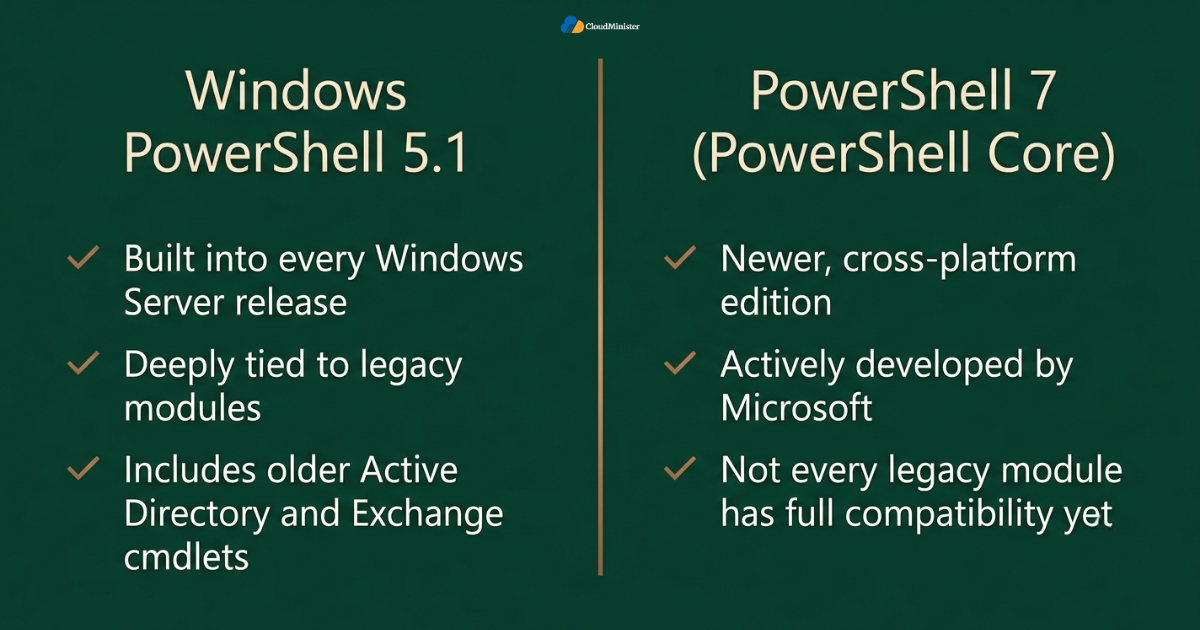
Before working through the ten PowerShell Commands in this guide, it helps to know that two main environments exist. Windows PowerShell 5.1 is built into every Windows Server release and remains deeply tied to legacy modules, including many older Active Directory and Exchange cmdlets. PowerShell 7, sometimes called PowerShell Core, is the newer, cross-platform, actively developed edition, but not every legacy Windows Server module has full compatibility with it yet.
- Most of the commands covered in this guide work identically in both editions, since they belong to core modules that Microsoft maintains across both.
- Where a difference exists, this guide notes it, because running the wrong cmdlet against an incompatible module version is one of the more common sources of confusing script failures.
- Mixed environments often standardize Windows PowerShell for legacy Windows Server tasks and PowerShell 7 for newer cross-platform workflows, checking module support before committing to one edition company-wide.
- Whichever edition is chosen, running $PSVersionTable at the start of any script confirms exactly which modules and PowerShell Commands will be available at runtime.
4. The 10 PowerShell Commands Every Windows Server Admin Should Know
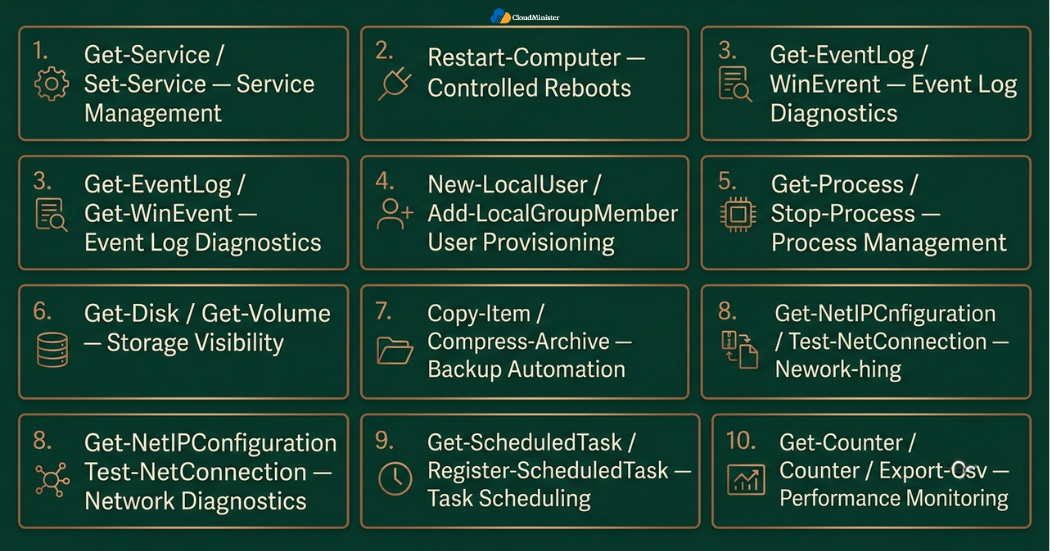
Below are ten PowerShell Commands, organized by the task category they solve, along with the reasoning behind why each one earns a place in a Windows Server administrator’s regular toolkit.
4.1 Get-Service and Set-Service: Service Management Without the Console
- Get-Service is one of the most frequently used entries on any list of PowerShell Commands because service status checks are one of the most common troubleshooting starting points on any server.
- Running Get-Service -Name “W3SVC” | Select-Object Status, StartType returns structured data an admin can act on immediately, instead of hunting through the Services console window by hand.
- Set-Service pairs naturally with Get-Service, letting an administrator change a service’s start type or restart it in the same script that first checked its status.
- Combining this pair into a single script lets a team check the health of every critical service across a whole fleet of machines in seconds rather than clicking through each server individually.
- This pairing works well as a scheduled task; when it runs on a recurring basis, an unexpectedly stopped service can restart automatically before a customer or colleague notices.
4.2 Restart-Computer: Controlled, Scriptable Reboots
- Restart-Computer is a deceptively simple entry in this list of PowerShell Commands, but the parameters around it are where the real value sits.
- Adding -Force ensures the reboot happens even if a user session is active, while -Wait combined with -For Wim or -For PowerShell lets a script pause until the machine is confirmed back online before continuing.
- This is one of the commands most admins reach for after applying patches, since a scripted reboot sequence can be chained directly into a larger patch management routine.
- Running Restart-Computer -Computer Name Server01, Server02 -Force against multiple targets at once removes the need to log into each machine separately for routine maintenance windows.
- On a Cheap Windows VPS server used for testing scripts, this is a safe place to practice remote reboot sequencing before running the same commands against production infrastructure.
4.3 Get-Event Log and Get-Win Event: Reading the System’s Own Story
- Among the cmdlets built for diagnostics, Get-Win Event is the modern, faster option, while Get-Event Log remains useful on older systems and for simpler queries.
- Get-Win Event -Log Name System -Misevent’s 50 pulls the fifty most recent system events without opening Event Viewer, which matters when an admin is troubleshooting over a slow remote session.
- Filtering with -Interactable lets these PowerShell Commands search by event ID, log name, and time range in a single structured query instead of scrolling manually through thousands of entries.
- A recurring script built around this pair can export critical or error-level events to a CSV file every morning, giving a team a standing report without anyone opening a console.
- This category is often the first place an admin looks when a server behaves unexpectedly after hours, since the event log usually records exactly what happened and when.
4.4 New-Local User and Add-Local Group Member: User Account Provisioning
- Account provisioning is one of the most repetitive administrative tasks, which makes it a natural fit for scripting.
- New-Local Username “doe-Password $secure Password creates a local account with a securely generated password in one line, instead of clicking through the Local Users and Groups console.
- Add-Local Group Member -Group “Remote Desktop Users” -Member “doe” then assigns only the permissions the account needs, following the principle of least privilege rather than granting administrative access by default. Elevated groups like Administrators should be assigned only when a role genuinely requires that level of access, ideally through a separate, deliberate step rather than as part of routine provisioning.
- For teams managing Active Directory instead of local accounts, the equivalent commands are New-AD User and Add-AD Group Member, which follow the same logical pattern against a domain rather than a single machine.
- Scripting this workflow also creates a natural audit trail, since every account creation can be logged automatically as part of the same script run.
4.5 Get-Process and Stop-Process: Managing What Is Actually Running
- Get-Process is one of the entries administrators reach constantly when a server feels sluggish,, and the cause is not immediately obvious.
- Sorting output with Get-Process | Sort-Object CPU -Descending | Select-Object -First 10 surfaces the ten most resource-intensive processes instantly, far faster than watching Task Manager refresh.
- Stop-Process -Name “notepad” -Force is the natural pairing among these PowerShell Commands, letting an admin terminate a misbehaving or unauthorized process directly from the same session.
- Combining both into a monitoring script that runs every few minutes can catch runaway processes before they consume enough memory to affect the rest of the server.
- Because these cmdlets return structured process objects, filtering CPU, memory, or process name is a matter of one pipeline step rather than manual scanning.
4.6 Get-Disk and Get-Volume: Storage Visibility Before It Becomes an Emergency
- Running out of disk space unexpectedly is one of the most common causes of a Windows Server outage; exactly the failure this pair is built to prevent.
- Get-Volume: Select-Object Drive Letter, Size Remaining, Size returns a clean, structured view of every volume’s free space, ready to be logged, emailed, or compared against a threshold.
- Get-Disk complements this by reporting on the physical or virtual disks themselves, including health status, which matters just as much as free space when diagnosing storage-related problems.
- A script combining these two commands with a simple percentage calculation can send an automatic alert for the moment free space drops below a defined threshold, well before a service fails.
- On infrastructure sourced through Windows VPS Hosting in India, where storage tiers and volume sizes vary by plan, this kind of proactive check is particularly valuable for catching growth trends before they become incidents.
4.7 Copy-Item and Compress-Archive: Backup and Archival Automation
- Manual backups are one of the tasks most likely to get skipped under time pressure. The gap between these pairs of commands is meant to close.
- Copy-Item -Path “C:\inetpub\wwwroot” -Destination “D:\backup\web” -Recurse duplicates an entire directory structure in one command, ready to be scheduled as a nightly job.
- Compress-Archive -Path “D:\backup\web” -Destination Path “D:\backup\web-2026.zip” then packages that backup into a single compressed file, saving storage space on the destination volume.
- Pairing these commands with Get-File Hash after compression confirms the integrity of the resulting archive, giving a team confidence that a backup is usable as it is needed in an emergency.
- Teams running workloads on a Cheap Windows VPS server with limited storage particularly benefit from scripting this compression step, since it keeps backup retention manageable without manual cleanup every week.
Related Reading: NVMe vs SSD hosting
4.8 Get-Multiconfiguration and Test-Net Connection: Network Diagnostics on Demand
- Network issues are notoriously hard to diagnose through the graphical interface alone, which is why this pair is worth learning early.
- Get-Multiconfiguration returns a clean summary of IP address, gateway, and DNS settings for every network adapter, replacing several older commands that each returned only part of the picture.
- Test-Net Connection -Computer Name “8.8.8.8” -Port 443 checks both basic reachability and specific port connectivity in a single call, far more informative than a plain ping when diagnosing a firewall or routing problem.
- Scripting this pair into a scheduled health check gives a team continuous visibility into connectivity between a server and the services it depends on, catching intermittent issues that a one-time manual check would likely miss.
- Running these checks regularly against key upstream endpoints helps distinguish a local configuration issue from a genuine network-level outage.
4.9 Get-Scheduled Task and Register-Scheduled Task: Automating the Automation
- This pair sits at one level above the rest of this list, since these PowerShell Commands are used to schedule and manage the very automation the other eight commands enable.
- Get-Scheduled Task | Where-Object {$_. State -eq “Ready”} lists every task waiting to run, giving an admin a complete picture of what is scheduled across a server without opening the Task Scheduler manually.
- Register-Scheduled Task lets a script create a new scheduled task programmatically, meaning an entire routine, including the trigger, action, and account context, can be deployed with a single run.
- Using these commands to deploy scheduled tasks consistently across multiple servers avoids the configuration drift that happens when tasks are created by hand on each machine separately.
- This is also where governance is important. Documenting every scheduled task created through this pair prevents the kind of orphaned automation that nobody remembers configuring six months later.
4.10 Get-Counter and Export-Csv: Performance Monitoring and Reporting
- Rounding out this list of PowerShell Commands is a pairing built for long-term visibility rather than one-time troubleshooting.
- Get-Counter ‘\Processor(_Total) \% Processor Time’ pulls live performance counter data directly from the operating system, the same data source behind Performance Monitor, but in a scriptable format.
- Export-Csv turns any output from this pair into a structured file that can be opened in a spreadsheet, fed into a dashboard, or archived for capacity planning.
- Scheduling this pairing to run every hour and append to a running log builds a historical performance baseline over time, making it far easier to tell whether a slowdown is a new problem or a gradual trend.
- Teams running GPU Servers for AI workloads alongside standard Windows Server roles find this kind of counter-based reporting particularly useful, since compute-heavy jobs make baseline performance data even more valuable for planning capacity ahead of time. GPU servers for deep learning in particular benefit from this same monitoring discipline, since training jobs can silently exhaust memory or storage if nobody is watching the counters.
The pattern that separates a genuinely useful automation practice from a folder of one-off scripts is consistency: predictable naming, shared error handling, and centralized logging across every script an admin write. A team that automates service checks but leaves backup scripting ad hoc, or that schedules performance monitoring but skips access logging, has not actually built an automation practice. It has built a partially scripted environment that will still drift into inconsistency over time.
5. Building Safer Automation Habits Around These Commands
Even well-written PowerShell Commands can cause damage if they are run carelessly. Building a few safety habits around them matters as much as knowing the syntax.
- Test every new script using these commands against a non-production target first, and a Cheap Windows VPS server used purely as a testing environment is one of the simplest ways to do this without risking anything customer-facing. This habit matters just as much when the target environment is a set of GPU servers for deep learning rather than a general-purpose file server.
- Use the -What If parameter, supported by many PowerShell Commands, to preview exactly what a command would do before it actually runs, which catches parameter mistakes before they touch a live system.
- Set an appropriate execution policy and require script signing in production environments, since unsigned scripts running unattended are one of the more common security gaps around scripted automation.
- Log every automated run, including which commands executed, when, and with what result, since this audit trail becomes essential now a scheduled task needs to be explained to a colleague or auditor.
- Review scheduled automation on a recurring basis. Scripts that made sense a year ago can become outdated as server roles change, and stale automation is a common source of unexpected failures.
Related Reading: Model Context Protocol and VPS hosting in India
Checklist: Automation Readiness Before Running These Commands in Production
- Execution policy configured and script signing enabled where appropriate
- Non-production target identified for testing new PowerShell Commands
- Logging configured for every scheduled script and automated task
- Backup and recovery policy confirmed before any Copy-Item or Compress-Archive routine goes live
- Role-based access mapped to who can create or modify scheduled tasks
- Rollback plan documented in case a scripted change needs to be reversed quickly
6. Infrastructure Readiness: Why the Hosting Layer Matters
The right Web Hosting Company in India brings more than raw server capacity to the table; it brings the underlying stability that makes scripted automation reliable in the first place. Even the best-written PowerShell Commands are only as dependable as the infrastructure they run on. A script that checks disk space every hour is not much use if the underlying storage itself is inconsistent, and a remote reboot sequence built around these cmdlets depends entirely on stable connectivity to complete as expected.
- Windows VPS Hosting in India gives teams predictable CPU, memory, and storage allocations, which matters directly when scheduling resource-intensive tasks like performance counter logging or large-scale file compression.
- A dependable Web Hosting Company in India that understands both Windows Server administration and broader infrastructure planning can meaningfully reduce the friction of running these commands reliably at scale.
- Teams pricing out where to run their automation should review a detailed pricing breakdown before committing budget, since the right VPS tier affects how comfortably these scripts run alongside regular production workloads.
- For teams also running machine learning workloads alongside standard Windows administration, understanding how GPU Servers for AI complement general-purpose compute helps clarify which workloads belong on a dedicated GPU tier instead of stretching a general-purpose VPS to cover both. A team with fine-tuning models on GPU servers for deep learning, for instance, should not expect the same VPS tier used for basic file server duties to keep up.
- Latency between where an admin session originates and the region hosting the target server should be measured before automation goes into daily use, since a slow remote session can make even well-written scripts feel unreliable.
For our detailed look at how VPS pricing tiers map to real workload requirements, see our guide on VPS hosting pricing in India, which breaks down exactly what a Cheap Windows VPS server includes at each tier compared with higher-specification plans.
When testing resource-intensive commands like Get-Counter logging or large Compress-Archive jobs, run them first on a Cheap Windows VPS server rather than production infrastructure, and apply the same caution before pointing these scripts at GPU servers for deep learning. A script that performs fine on paper can still strain shared resources if the underlying VPS tier was never actually load-tested for that specific task.
Ready to Run These Commands on Infrastructure Built for Them?
Scripted automation is only as reliable as the server it runs on. Get predictable performance, full administrative access, and stable connectivity with Windows VPS Hosting in India.
7. Common Mistakes Teams Make When Adopting PowerShell Commands
Even teams that know the correct syntax for these commands can fall into avoidable mistakes if they treat scripting as a one-time project instead of an ongoing practice.
- Treating a script built around these commands as a one-time deployment instead of something that needs regular review as server roles and requirements change.
- Running scripts with elevated privileges by default, rather than scoping permissions to only what a specific task needs to accomplish.
- Skipping the -What If preview step during initial testing, assuming a script’s logic is correct without confirming it against a safe target first.
- Failing to document which scheduled tasks depend on which commands, leaving a new team member unable to safely modify or retire from old automation.
- Underestimating how much a script resource usage can vary under load, particularly for cmdlets like Get-Counter or Compress-Archive running against a heavily used production server or a Cheap Windows VPS server with limited headroom. This is doubly true on GPU servers for deep learning, where background scripting can quietly compete with a running training job for CPU cycles.
- Not assigning clear ownership for a team’s script library, leaving maintenance to whichever administrator happens to notice something has broken.
Across real Windows Server deployments, the gap between a team that automates well and one that quietly accumulates fragile scripts is rarely about which specific PowerShell Commands were chosen. It is a difference in operational discipline. Teams that assign a dedicated script owner and schedule recurring reviews report far fewer instances of the kind of automation drift that an unmanaged script library eventually produces.
8. Security Considerations When Running Scripts at Scale
Running PowerShell Commands across multiple servers introduces a specific security layer on top of the standard technical considerations already covered in this guide.
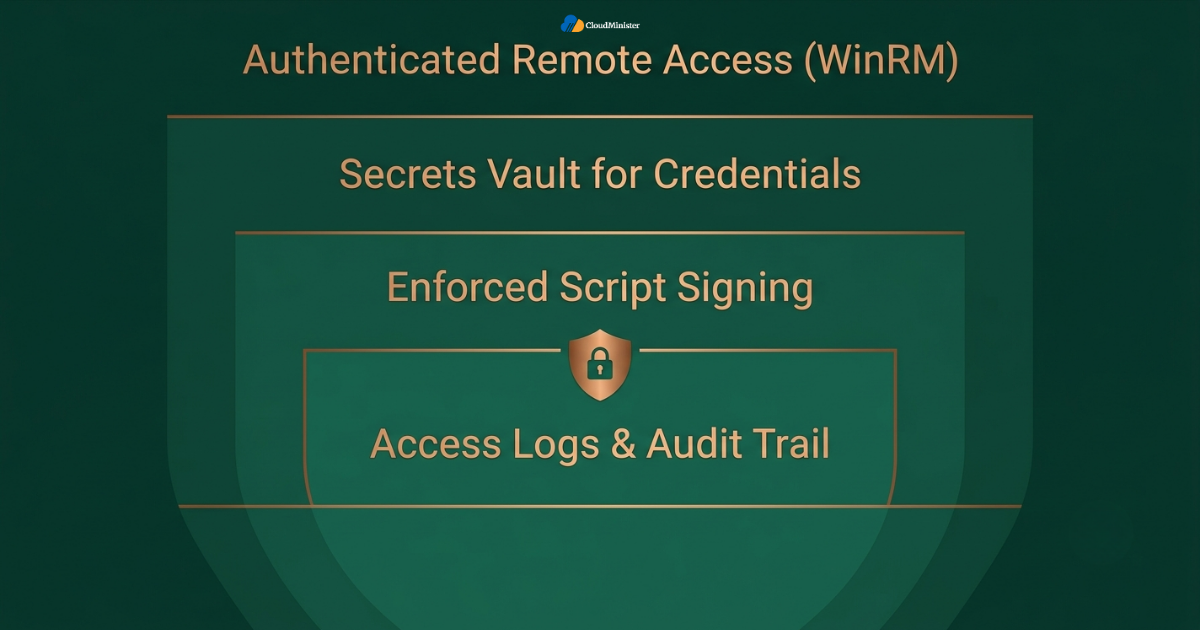
- Remote execution should rely on WinRE configured with proper authentication rather than broadly open access, since an unsecured remote endpoint is one of the more common attack surfaces on a Windows Server fleet.
- Credentials used by scheduled scripts built around these commands should be stored using a credential manager or secrets vault, never hardcoded directly into a script file.
- Access logs generated by scheduled tasks give administrators a documented audit trail that supports basic security review requirements, which matters increasingly as more automation touches production data.
- Script signing policies should be enforced consistently across every server where these commands run unattended, preventing an unsigned or tampered script from executing silently.
Related Reading: Multi-agent systems and dedicated GPU servers
Checklist: Security Considerations for Your Script Library
- WinRE configured with proper authentication for remote script execution
- Credentials for scheduled tasks stored in secrets vault rather than hardcoded
- Script signing enforced for any PowerShell Commands running unattended
- Access logs retained per documented internal security requirements
- Elevated privileges scoped to only the specific commands that require them
- Incident response plan tested at least once for a scenario involving a compromised or malfunctioning script
9. Measuring Whether Your Automation Is Actually Saving Time
Sharing script performance and reliability data with your hosting provider periodically keeps both sides accountable for how well the underlying infrastructure supports automation. Adopting a set of PowerShell Commands is not complete once the scripts are written and deployed. Long-term value depends on how the automation is measured and maintained afterward.
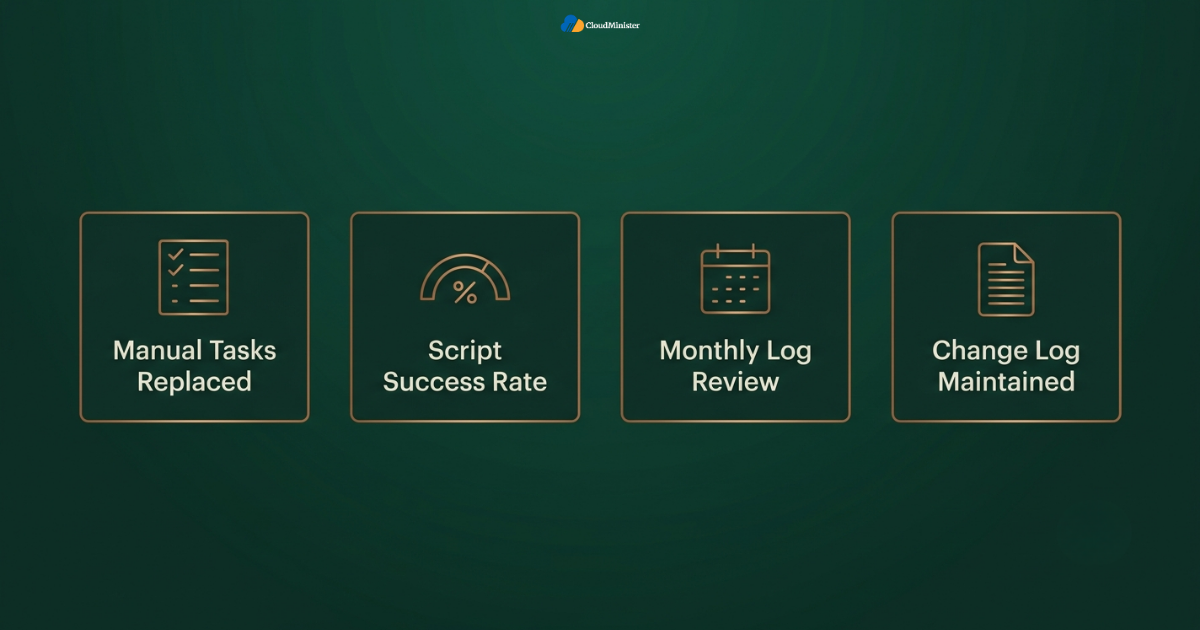
- Track how many manual console tasks have actually been replaced by scripting, since any workload still being handled by hand represents unrealized time savings.
- Measure script execution success rates on a recurring basis rather than assuming a scheduled task is running cleanly by default.
- Review scheduled tasks and script logs monthly, since a growing server fleet without a corresponding review often accumulates stale or duplicated commands nobody remembers writing.
- Reassess script scope as workloads change, particularly when a team that has only automated basic service checks begins layering in more complex tasks like GPU Servers for AI monitoring, GPU servers for deep learning capacity tracking, or large-scale backup routines.
- Maintain a change log for every significant script modification, so the team can trace exactly when and why a given set of PowerShell Commands changed behavior.
As a script library matures, periodically re-run a full review across every scheduled task and stored credentials. Team members change roles, contractors’ complete engagements, and old automation outlives its original purpose without anyone revoking the access it was given, and stale scheduled tasks remain one of the most common sources of unnecessary risk in an otherwise well-managed environment.
10. Choosing the Right Infrastructure Partner for Scripted Administration
Not every hosting provider is built to support the same scale of scripted automation, so matching a provider’s capability to actual team needs matters more than brand recognition alone. Architecture decisions get most of the attention during an automation build-out, but the infrastructure partner supporting the broader environment plays an equally important role in how reliably these commands perform over time.
- A dependable hosting partner that already manages a team’s broader infrastructure is well positioned to advise on how scripted automation should connect into existing systems without introducing unnecessary latency.
- Teams evaluating providers should specifically ask whether the provider has direct experience supporting customers running scheduled PowerShell Commands on a meaningful scale, not just provisioning individual virtual machines.
- Teams that want to move quickly without assembling every layer themselves often gravitate toward Windows VPS Hosting in India that comes with clear documentation on remote access and administrative permissions from day one.
- IT leaders who have not yet evaluated their hosting partner relationship specifically in the context of a scripted automation rollout should treat this guide as a natural trigger point to do so.
- A Web Hosting Company in India that combines Windows Server expertise with broader infrastructure experience, including support for GPU servers for deep learning and Cheap Windows VPS server plans alike, gives growing teams a single, coherent roadmap instead of stitching together advice from multiple vendors.
Key Takeaways
- PowerShell Commands are structured, Verb-Noun cmdlets that let administrators query and control nearly every part of Windows Server directly from a script.
- A stressed, catch-up-driven IT environment is exactly where a well-built library of PowerShell Commands delivers the most measurable relief.
- The ten PowerShell Commands in this guide span service management, reboots, event logs, user provisioning, process management, storage monitoring, backups, network diagnostics, task scheduling, and performance reporting.
- Testing new scripts against a Cheap Windows VPS server before touching production is one of the simplest and most effective safety habits and admin can build.
- Security considerations, including credential storage, script signing, and access logging, matter just as much as the syntax of the commands themselves.
- Infrastructure quality directly affects how reliably scripted automation performs, which is why Windows VPS Hosting in India and a dependable Web Hosting Company in India both matter to a serious automation strategy.
- Teams running compute-heavy workloads alongside standard administration should understand how GPU Servers for AI, and GPU servers for deep learning specifically, fit into their broader infrastructure plan.
- Measuring whether PowerShell Commands are saving time, not just assuming they are, is what separates a mature automation practice from a folder of untracked scripts.
Not Sure Where to Start With Server Automation?
Our team can help you plan a scripting rollout that fits your infrastructure, from testing environments to production-scale scheduling. Talk to us before you commit engineering hours.
Conclusion
Throughout this process, a dependable Web Hosting Company in India remains one of the most consistent multipliers on how smoothly a scripted automation rollout goes. Whether a team is just starting to replace manual console clicks with its first few PowerShell Commands or already maintains a mature script library, the underlying principles in this guide hold either way. Getting the choice of hosting infrastructure right early on tends to pay off across every stage of a team’s automation roadmap that follows.
Learning to use these commands well has moved well past being an optional skill for Windows Server administrators. By 2026, structured automation is close to the expected baseline for any team managing more than a handful of servers, and the stress and workload data around IT operations makes clear why that shift matters. The teams that get the most value from this approach share a consistent pattern: they treat their PowerShell Commands as a structured, ongoing capability spanning service management, storage monitoring, backup automation, and security, supported by clean documentation and a dedicated owner, rather than a folder of scripts nobody fully understands. For teams running on Windows VPS Hosting in India specifically, pairing well-written scripts with a dependable Web Hosting Company in India for the surrounding infrastructure gives the strongest foundation for scaling Windows Server administration without the drift, risk, and wasted hours that unmanaged manual work eventually produces.
Frequently Asked Questions
Do I need to learn every module to get value from PowerShell Commands?
No. Most Windows Server administrators get significant value from mastering a focused set of PowerShell Commands covering service management, storage checks, and basic reporting before expanding into more specialized modules like Active Directory or Hyper-V administration.
Are PowerShell Commands safe to run on a production server without testing first?
Testing is highly recommended. Even well-understood commands can behave unexpectedly against a specific server configuration, which is why testing on a Cheap Windows VPS server or another non-production target before a full rollout is considered a best practice rather than an optional step.
Can PowerShell Commands replace the need for a dedicated systems administrator?
No. These commands reduce the volume of repetitive manual work, but ongoing monitoring, script maintenance, and judgment calls around infrastructure changes still reinitiated against the owner. Automation reduces avoidable manual effort rather than eliminating the need for someone to own the environment.
Do PowerShell Commands work the same way across different Windows Server versions?
Mostly yes, administrators should confirm module compatibility when working across older and newer Windows Server versions. Core cmdlets like Get-Service and Get-Process have remained stable for years, while newer modules occasionally introduce version-specific behavior.
What should teams check before running PowerShell Commands against servers hosted in India?
Beyond scripting best practices, it is worth confirming that the chosen hosting partner supports the remote access method the automation depends on, whether that is WinRM, RDP-based scripting, or another remote execution approach, and that the underlying infrastructure, including any GPU servers for deep learning in use, has been tested under the kind of load these commands are expected to generate.