To install Docker on a dedicated server, start with a clean and fully updated 64 bit Linux install, remove conflicting packages, add Docker’s official apt repository, install Docker Engine with the Buildx and Compose plugins, and confirm the setup with a test container. This guide explains each step on Ubuntu, then covers daemon settings, firewall behaviour, container security, storage, backups, monitoring, and troubleshooting. It also explains how Dedicated Servers in India, Affordable VPS Hosting, and a trusted Web Hosting Company in India fit into a container hosting plan, because the best software setup still depends on the server and network underneath it.
A dedicated server gives your containers an entire machine. Every CPU core, every gigabyte of memory, and every disk belongs to your workloads alone, which is why so many teams choose to install Docker on a dedicated server once a shared plan starts to feel cramped. You get steady performance, full control over kernel and network settings, and a clean base for databases, APIs, build runners, and AI services that cannot tolerate noisy neighbours. Many Indian teams now look at Dedicated Server Hosting in India for exactly this reason.
Containers are no longer a niche habit. The CNCF Annual Cloud Native Survey published in January 2026 reports that 82 percent of container users now run Kubernetes in production, up from 66 percent in 2023. That figure shows how normal containers have become in real production environments. Docker images follow open container standards, so an image you build and test on one machine can run on another server, in a cluster, or in the cloud without rewriting the application. That is why a clear, repeatable method to install Docker on a dedicated server is a useful skill for any infrastructure team.
This guide shows you how to install Docker on a dedicated server using Docker’s official repository and the current Compose plugin. The examples use Ubuntu 24.04 LTS because it is common on servers, and the planning, security, and maintenance advice applies to other distributions as well. You will learn how to prepare and harden the host, avoid the firewall trap that catches many teams, size resources, back up volumes, and fix the errors you are most likely to meet. Whether you run Dedicated Servers in India for one project or for a whole product line, the goal is the same: a setup that is simple to repeat, safe to expose, and easy to repair. If you are still weighing plans, a VPS Hosting India option is a cheap way to rehearse everything first.
Table of Content
- 1. Why Teams Choose Docker on Bare Metal Servers
- 2. Dedicated Server vs VPS: Where Docker Fits Best
- 3. Requirements and Planning Before Docker Setup
- 4. Prepare and Harden the Server Before Docker Setup
- 5. Remove Old Packages and Add the Official Docker Repository
- 6. Step by Step: Docker Engine Setup With apt
- 7. Verify Your Setup and Run a First Container
- 8. Post Install Steps: Users, Startup and Daemon Settings
- 9. Docker and the Firewall: Publish Ports Without Surprises
- 10. Secure the Host and Your Containers
- 11. Storage, Backups and Resource Limits
- 12. Monitoring, Updates and Routine Maintenance
- 13. Troubleshooting Common Errors After Docker Setup
- 14. Common Mistakes to Avoid During Docker Setup
- 15. Choosing the Right Hosting Partner for Docker Workloads
- Key Takeaways
- Conclusion
- Frequently Asked Questions
1. Why Teams Choose to Install Docker on a Dedicated Server
Containers package an application with everything it needs, so it behaves the same on a laptop, a test server, and production. On a dedicated machine that packaging meets hardware you fully control. Teams usually install Docker on a dedicated server for one of three reasons: steady performance, stronger isolation from other customers, or the need for hardware such as large memory, local NVMe storage, or GPUs. Providers of Dedicated Servers in India commonly add remote console access and quick operating system reinstalls, which makes a rebuild far less stressful than a trip to a data centre.
- Predictable performance: with no hypervisor shared with other customers, CPU and disk latency stay steady, which suits databases, queues, and build pipelines.
- Single tenant hardware: no other customer’s workload runs on your machine, which removes one class of cross customer risk, although your own containers still share one host kernel.
- Kernel and network control: you can tune sysctl values, choose the filesystem under /var/lib/docker, and design the network without asking anyone for permission.
- Cost at scale: when many containers run all day, one large machine can cost less than a crowd of small cloud instances or several VPS Hosting India plans.
- High density: containers add very little overhead compared with full virtual machines, so one host can run dozens of small services.
- Direct hardware access: GPUs, fast network cards, and NVMe arrays can be used by containers once the matching drivers or toolkits are installed.
- Easy rebuilds: if your Compose files, configuration, and backups are stored safely, a failed machine can be replaced and restored quickly.
- Clear data location: a server in a known data centre makes residency and audit conversations simpler.
Many businesses that plan to install Docker on a dedicated server also want the surrounding services handled well, such as network capacity, hardware replacement, and monitoring. A dependable Web Hosting Company in India can take care of that physical layer, so your team spends its time on images, volumes, and releases instead of cabling and spare parts. If your load is still small, Affordable VPS Hosting may be enough today, and Dedicated Server Hosting in India can wait until the numbers justify it.
2. Dedicated Server vs VPS: Where Docker Fits Best
Docker runs well on both. A VPS is a virtual machine carved out of a larger physical host, while a dedicated server is the whole machine. Many teams prototype on Affordable VPS Hosting and later move production workloads to bare metal when resource contention starts to hurt. The steps to install Docker on a dedicated server are almost identical to the steps on a VPS, so everything you learn on a small plan carries over directly.
| Factor | VPS | Dedicated Server |
| Resources | Shared physical host, share set by the plan | Entire machine for one customer |
| Performance | Can vary when neighbours are busy | Steady and predictable |
| Hardware control | Limited to the guest system | Broad, including RAID and drive layout |
| Entry price | Lower | Higher |
| Scaling | Fast resize inside the plan | New hardware or extra servers |
| Best for | Learning, staging, small apps | Databases, heavy APIs, GPU and large container fleets |
- Learning and testing: a small plan from the VPS Hosting India segment is enough to practise Docker commands, Compose files, and image builds.
- Production load: move to Dedicated Server Hosting in India or another bare metal plan when monitoring shows CPU steal time, disk latency, or memory pressure caused by sharing.
- Virtualization type: pick a KVM based VPS, because container based VPS types that share the host kernel often block features Docker needs.
- Staging parity: keep a small VPS with the same operating system release as production, so scripts and Compose files behave identically.
- Pricing: compare total monthly cost, including bandwidth, backups, and support, not just the headline price of Affordable VPS Hosting or any other plan.
- Location: a server in an Indian data centre generally gives lower latency to Indian users, and many teams pick a Web Hosting Company in India for exactly that reason.
- Compliance: if rules require data to stay in the country, Dedicated Servers in India help you meet that need, but always confirm your own legal duties.
In short, a VPS is a very good training ground and a dedicated server is a very good production home. Anyone who wants to install Docker on a dedicated server should still keep a cheap rehearsal machine, because a failed experiment on staging costs nothing, while the same experiment on production can cost a night’s sleep. Good VPS Hosting India plans exist for exactly this rehearsal role.
Ready to Run Docker on Bare Metal?
Give your containers an entire machine with steady CPU, memory, and NVMe performance. CloudMinister Dedicated Servers come with full root access and remote console support, so you can install Docker, harden the host, and scale your workloads with confidence.
3. Requirements and Planning Before You Install Docker on a Dedicated Server
A few minutes of planning prevent most installation trouble. Docker Engine itself is light, so the real planning goes into the operating system, disk layout, network, and the workloads you intend to run. Write these decisions down before the first command, because they are hard to change once real data lives in volumes. Teams that install Docker on a dedicated server with a written plan rarely need to redo work later.
- Operating system: a 64 bit, currently supported Ubuntu LTS release such as 24.04 is a practical choice. Confirm your exact release on Docker’s supported platforms page before you start.
- Access: root or a sudo user, SSH key access, and a provider remote console or IPMI session in case a firewall change locks you out.
- Disk layout: put /var/lib/docker on its own partition or logical volume, formatted ext4 or XFS, so image growth cannot fill the root filesystem.
- Memory and CPU: add up the limits of every planned container and keep a healthy reserve, a couple of gigabytes at least, for the host itself.
- Network: note the public IP, any private network, and the subnets in use, because Docker’s default bridge uses 172.17.0.0/16 and can clash with your own ranges.
- Time and DNS: working time synchronisation and reliable DNS resolvers on the host, because containers inherit both.
- Backups: decide where volume backups will go and how often they run before any real data is stored. Some Dedicated Server Hosting in India plans include backup space, so ask what is offered.
- Domain and TLS: if containers will serve websites, plan DNS records and certificates ahead of time.
Ask these questions early when you compare Dedicated Servers in India from different providers: how fast can the operating system be reinstalled, is there remote console access, and what network bandwidth is included? A Web Hosting Company in India that answers clearly and in writing makes the whole project safer. If you are unsure about sizing, a short trial on a VPS Hosting India plan or on Affordable VPS Hosting can show how much memory your containers really use before you commit to bare metal.
Related Reading: Why a dedicated server is often the best choice for a busy website
Before you touch the server, record a way back. That can be a provider snapshot, a documented reinstall procedure, or both. Dedicated hardware rarely has a cheap undo button, so a tested way back is your real safety net when you install Docker on a dedicated server.
4. Prepare and Harden the Server Before You Install Docker on a Dedicated Server
Start from a fresh install of your chosen release and update everything before adding Docker. Hardening first is much easier than hardening later, because nothing depends on the old settings yet. These steps take about fifteen minutes and protect every container you will run after you install Docker on a dedicated server. Providers of Dedicated Server Hosting in India normally hand you a clean image with root access, which is the ideal starting point. If you are still learning, run the same steps on an Affordable VPS Hosting server first.
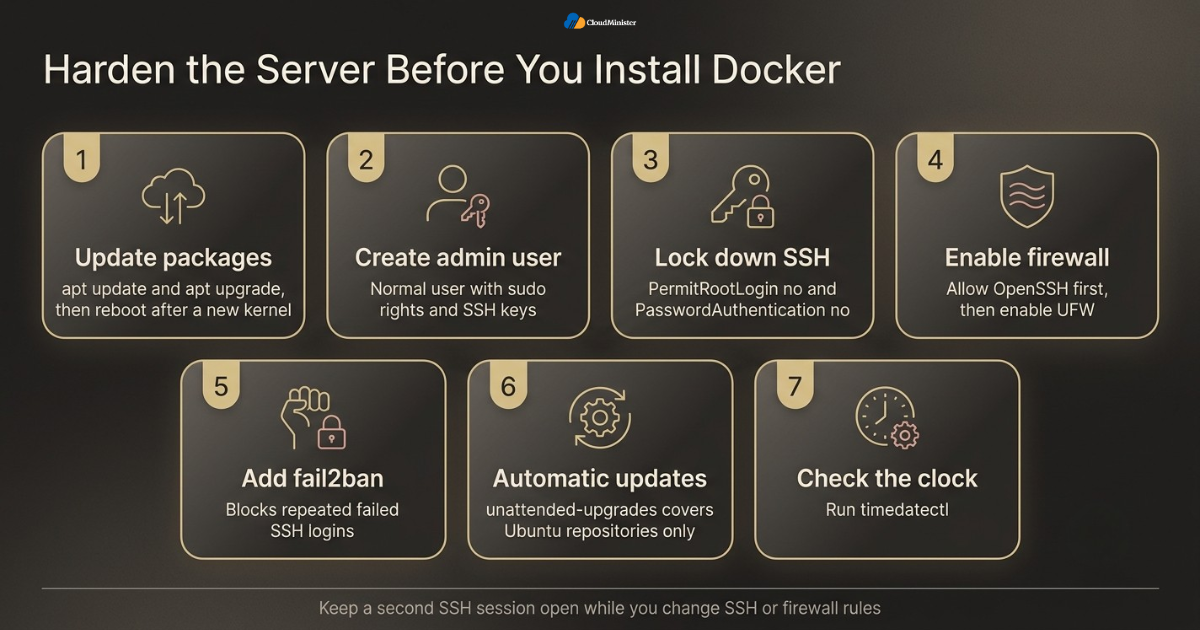
- Update packages: run sudo apt update and sudo apt upgrade, then reboot if a new kernel was installed.
- Create an admin user: add a normal user with sudo rights and log in with SSH keys instead of passwords.
- Lock down SSH: after you confirm key login works in a second terminal, set PermitRootLogin no and PasswordAuthentication no in the SSH configuration, then reload the ssh service.
- Enable the firewall safely: allow SSH first with sudo ufw allow OpenSSH, then run sudo ufw enable. Open ports 80 and 443 only if you will serve web traffic.
- Slow brute force attacks: install fail2ban so repeated failed SSH logins are blocked automatically.
- Automatic security updates: make sure unattended-upgrades is installed and enabled. By default it covers Ubuntu’s own repositories, so Docker packages will still need manual updates later.
- Check the clock: run timedatectl and confirm that the system clock is synchronised and the time zone is correct.
- Respect container networking: avoid hardening scripts that switch off IP forwarding, because container networking depends on it.
sudo apt update && sudo apt upgrade -y
sudo adduser deploy
sudo usermod -aG sudo deploy
sudo ufw allow OpenSSH
sudo ufw enable
sudo apt install -y fail2ban unattended-upgrades
timedatectl
Once these basics are in place, the server is ready for Docker. Skipping this stage is tempting when you are in a hurry to install Docker on a dedicated server, yet every shortcut here becomes a risk that every container inherits. An experienced Web Hosting Company in India will usually offer managed hardening and monitoring, which is worth considering if nobody on your team is on call at night. The same hardening list works on a VPS Hosting India plan, and anyone who rents Dedicated Servers in India should also ask how the provider secures out of band access.
Keep a second SSH session open while you change SSH or firewall rules, and test key login before you disable password login. Locking yourself out of a remote dedicated machine can mean a slow recovery through the provider console.
5. Remove Old Packages and Add the Official Docker Repository
Docker’s documentation recommends installing from Docker’s own apt repository. The packages in Ubuntu’s default repositories, such as docker.io, are maintained by the distribution rather than by Docker, and they usually lag behind the current release. Mixing the two causes conflicts. This step makes sure you start clean and that future updates arrive through the normal apt process. The same repository steps work on an Affordable VPS Hosting plan, so you can rehearse them there first. Getting this stage right matters, because it decides how cleanly you install Docker on a dedicated server and how smoothly the packages update later.
| Install method | Best for | Main point |
| Official apt repository | Production servers | Recommended by Docker, and updates arrive through apt |
| Convenience script | Quick tests and development | Docker says it is not meant for production use |
| Manual DEB packages | Hosts without internet access | You download and update every package yourself |
| Distribution package docker.io | Teams that must use distribution packages only | Maintained by the distribution, so versions often lag |
- Check what is installed: run docker –version and dpkg -l | grep -i docker to see whether an older install exists before you install Docker on a dedicated server.
- Remove conflicting packages: docker.io, docker-compose, docker-compose-v2, docker-doc, podman-docker, and the distribution builds of containerd and runc.
- Your data is safe: removing packages does not delete images, containers, volumes, or networks stored in /var/lib/docker.
- Install prerequisites: ca-certificates and curl are needed to fetch the signing key over HTTPS.
- Add the signing key: save Docker’s GPG key under /etc/apt/keyrings so apt can verify every package.
- Add the repository: create a sources file that uses your release codename from /etc/os-release, so the right packages are selected.
- Confirm the source: after apt update, run apt-cache policy docker-ce and check that the candidate comes from download.docker.com.
- Read before you run: never pipe scripts from the internet into a shell on a production server without reading them first.
for pkg in docker.io docker-doc docker-compose docker-compose-v2 podman-docker containerd runc; do sudo apt-get remove -y $pkg; done
sudo apt update
sudo apt install -y ca-certificates curl
sudo install -m 0755 -d /etc/apt/keyrings
sudo curl -fsSL https://download.docker.com/linux/ubuntu/gpg -o /etc/apt/keyrings/docker.asc
sudo chmod a+r /etc/apt/keyrings/docker.asc
sudo tee /etc/apt/sources.list.d/docker.sources <<EOF
Types: deb
URIs: https://download.docker.com/linux/ubuntu
Suites: $(. /etc/os-release && echo "${UBUNTU_CODENAME:-$VERSION_CODENAME}")
Components: stable
Signed-By: /etc/apt/keyrings/docker.asc
EOF
sudo apt update
These commands run once per server. If you manage several machines, put them in an automation tool such as Ansible so every host is identical. A team that books Dedicated Server Hosting in India for a growing fleet will save a lot of time by treating repository setup as code, and Dedicated Servers in India are far easier to manage when every build matches.
6. Step by Step: How to Install Docker on a Dedicated Server With apt
With the repository in place, the installation itself is one command. Docker Engine is split into several packages, and each has a clear job. Installing all of them gives you the daemon, the command line client, the container runtime, the image builder, and the Compose plugin in one go. This is the moment when you install Docker on a dedicated server, and it normally takes only a few minutes on a healthy connection, and an Affordable VPS Hosting plan takes the same few minutes.
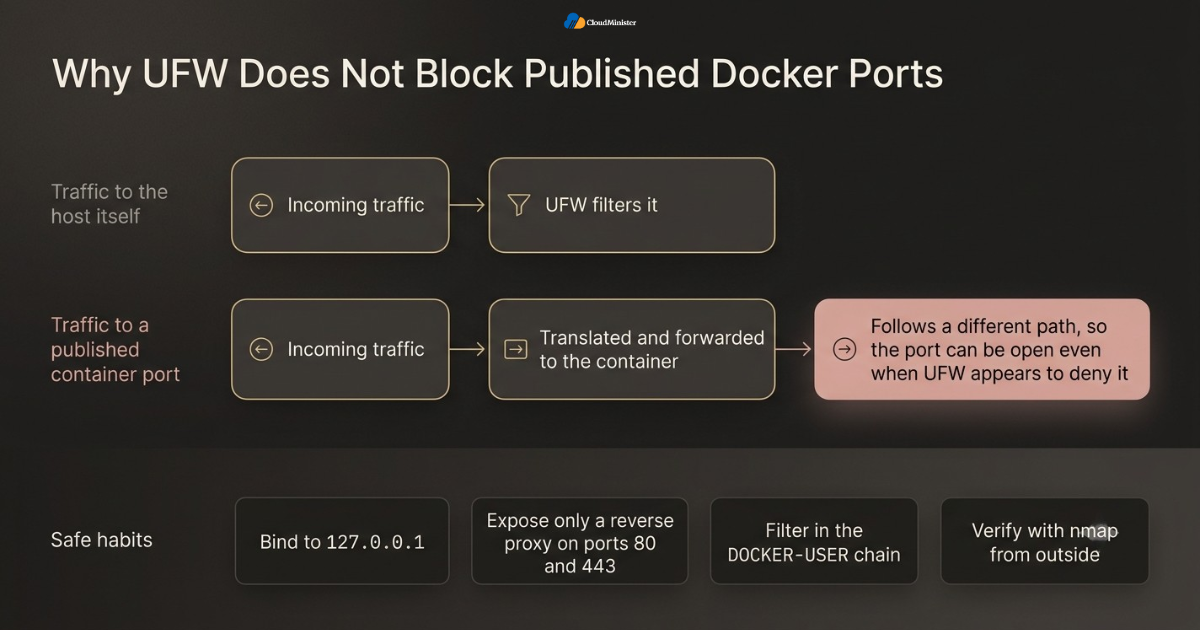
- docker-ce: the Docker Engine daemon, called dockerd, which builds, runs, and manages containers.
- docker-ce-cli: the docker command line client that talks to the daemon.
- containerd.io: the container runtime that dockerd uses to start and supervise containers.
- docker-buildx-plugin: the BuildKit based builder behind docker buildx build, including multi platform builds.
- docker-compose-plugin: adds docker compose, the current Compose command, written with a space and not a hyphen.
- Automatic start: on Ubuntu the packages start Docker and enable it at boot, so no extra step is normally needed.
- Version pinning: list builds with apt-cache madison docker-ce and install an exact version when change control demands it.
- Held packages: use apt-mark hold only when you must, because held packages do not receive security fixes.
- Docker Desktop: not needed on a server. You want Docker Engine, which is what these packages provide.
sudo apt install -y docker-ce docker-ce-cli containerd.io docker-buildx-plugin docker-compose-plugin
docker --version
docker compose version
On other Linux families the steps differ slightly. Debian uses its own repository path, while Red Hat family systems use dnf and a different repository file, so follow Docker’s page for your exact distribution before you install Docker on a dedicated server on a non Ubuntu host. If you rent Dedicated Server Hosting in India with a different operating system image, confirm that release appears on Docker’s supported platforms list first. A Web Hosting Company in India usually lists its supported operating systems, and most providers of Dedicated Servers in India offer Ubuntu images, so the steps above fit many servers.
Related Reading: Seven features of dedicated hosting
The convenience script at get.docker.com is handy on throwaway test machines, including a small VPS Hosting India plan, but Docker itself says it is not meant for production. Use the repository method on any server you care about, so updates arrive through apt and you can audit exactly what was installed.
7. Verify Your Setup and Run a First Container
A successful install is not the same as a working install. Spend five minutes confirming that the daemon is running, the storage driver is sensible, and a real container can start, answer a request, and be removed. These checks matter just as much as the commands you used to install Docker on a dedicated server, because they prove that the daemon, networking, and storage all work together, and they give you a baseline to compare against when something behaves strangely later.
- Service state: systemctl status docker should show active (running) with no recent errors.
- Hello world: docker run –rm hello-world pulls a tiny image and prints a confirmation message, which proves that pulls and container starts work.
- Engine details: docker info lists the server version, storage driver, logging driver, cgroup version, and root directory.
- Storage driver: you should normally see overlay2, the default and recommended driver on current kernels.
- Cgroup version: modern Ubuntu releases use cgroup v2, and Docker supports it for resource limits.
- Data directory: Docker Root Dir should read /var/lib/docker unless you deliberately moved it.
- Real service test: run a small web container bound to 127.0.0.1 and request it with curl from the host.
- Clean up: remove the test container so it does not linger and use resources.
sudo systemctl status docker
sudo docker run --rm hello-world
sudo docker info
sudo docker run -d --name web --restart unless-stopped -p 127.0.0.1:8080:80 nginx:stable
curl -I http://127.0.0.1:8080
sudo docker rm -f web
If any check fails after you install Docker on a dedicated server, do not carry on with application deployments. Fix the failure first using the troubleshooting section later in this guide. Slow or failing image pulls usually point to DNS or routing trouble, and a responsive Web Hosting Company in India can help check the network side. It is also worth raising the issue with the network team if you rent Dedicated Servers in India, since blocked outbound traffic is a common cause. Repeat the same checks on a VPS Hosting India test plan, an Affordable VPS Hosting server, and any Dedicated Server Hosting in India machine, so you know the results match.
Bind every test container to 127.0.0.1 until your firewall behaviour is proven. It is a simple habit that stops a forgotten test container from becoming a public service, especially right after you install Docker on a dedicated server.
8. Post Install Steps: Users, Startup and Daemon Settings
The default installation works, but a production host needs a few extra decisions. Docker only lets root and members of the docker group use its socket, so you must decide who gets that power. You should also confirm automatic start at boot and add log rotation, because unrotated container logs are one of the most common reasons a dedicated server runs out of disk. Anyone who wants to install Docker on a dedicated server for production should do these steps right away.
- Group access: add trusted admins with sudo usermod -aG docker $USER, then log out and back in or run newgrp docker.
- Understand the risk: a docker group member can mount the host filesystem inside a container, so treat group membership as root access.
- Boot behaviour: check with systemctl is-enabled docker and, if needed, run sudo systemctl enable docker.service containerd.service.
- Log rotation: the default json-file driver keeps logs forever unless max-size and max-file are set, and new settings apply only to containers created afterwards.
- Live restore: “live-restore”: true keeps containers running while the daemon restarts for upgrades, and it is not compatible with Swarm mode.
- Validate first: run dockerd –validate against your file before restarting, because a typo can stop Docker from starting.
- Pick a quiet window: restarting the daemon stops containers unless live restore is already on, although restart policies bring them back.
- Network clashes: if 172.17.0.0/16 overlaps your private network, set bip and default-address-pools in daemon.json.
- Data location: change data-root only when a larger disk is mounted and the move is planned, and copy existing data first. This is common on Dedicated Servers in India that ship with extra drives.
sudo usermod -aG docker $USER
newgrp docker
docker run --rm hello-world
{
  "log-driver": "json-file",
  "log-opts": {
    "max-size": "10m",
    "max-file": "3"
   },
   "live-restore": true
}
sudo nano /etc/docker/daemon.json
sudo dockerd --validate --config-file=/etc/docker/daemon.json
sudo systemctl restart docker
Keep daemon.json small and documented. Every setting you add is one more thing to remember during an incident, so add only what you can explain. Teams that install Docker on a dedicated server on several machines usually keep this file in version control so every host gets identical settings. Whether the host comes from Dedicated Server Hosting in India, a VPS Hosting India plan, or an Affordable VPS Hosting test plan, the same file works everywhere, which keeps behaviour consistent. A good Web Hosting Company in India will also keep a configuration history if it manages the server for you.
Never expose the Docker API on TCP port 2375. That port has no authentication, and anyone who can reach it controls your whole server. If you need remote access, use an SSH based Docker context, or enable TLS on port 2376 with client certificates.
9. Docker and the Firewall: Publish Ports Without Surprises
This is the section that saves most teams from an embarrassing incident. UFW mainly filters traffic that is destined for the host itself, but traffic to a published container port is translated and forwarded to the container, so it follows a different path through the firewall. The result is that a port published with -p can be reachable from the internet even when UFW appears to deny it. Anyone who plans to install Docker on a dedicated server must understand this behaviour before the first public deployment.
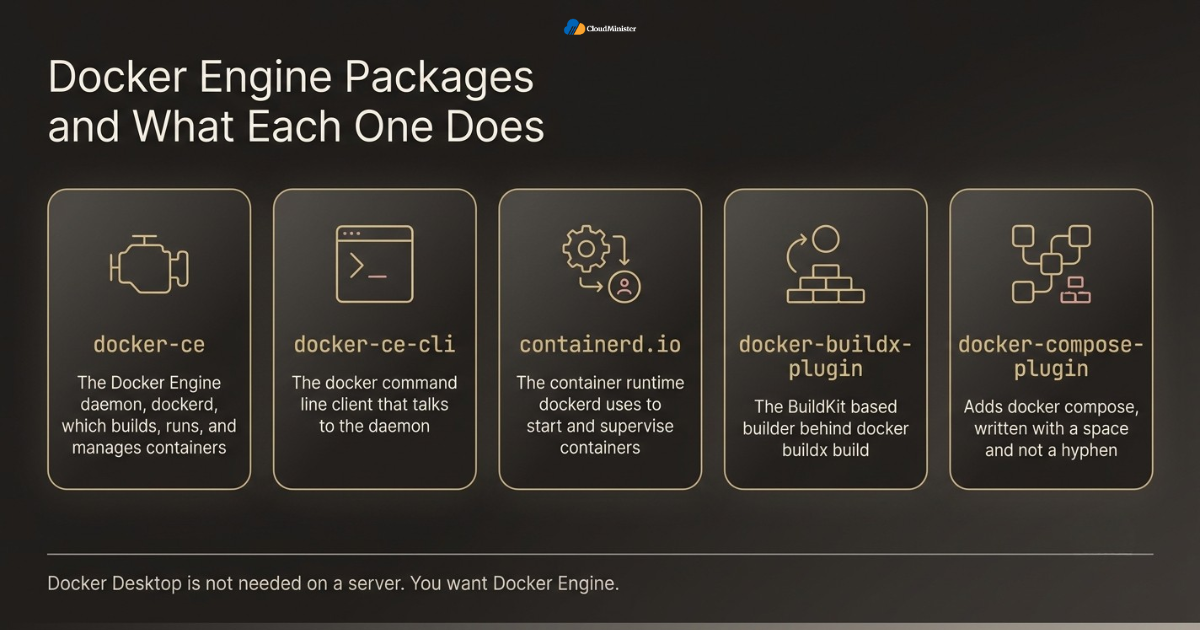
- Bind to loopback: publish with -p 127.0.0.1:8080:80 so only local processes, such as a reverse proxy, can reach the container.
- Expose only the proxy: let Nginx, Caddy, or Traefik listen on ports 80 and 443 and forward to containers over a private Docker network.
- Keep databases private: do not publish database ports at all. Place them on a user defined network shared only with the application containers.
- Use the DOCKER-USER chain: Docker evaluates rules placed there before its own rules, so it is the right place for custom filtering. Traffic there has already been address translated, so test every rule.
- Verify from outside: scan with nmap from a different machine or network rather than trusting local rule listings.
- Keep the API closed: never publish port 2375. For remote administration, create an SSH context with docker context create.
- Recreate rules after a flush: if a firewall reload or flush removes Docker’s rules, restart the Docker service so they are rebuilt.
- Decide on IPv6: enable it deliberately and check firewall rules for both protocols, because they are handled separately.
- Isolate sensitive services: docker network create –internal makes a network with no route to the outside world.
services:
  web:
    image: nginx:stable
    restart: unless-stopped
    ports:
      - "127.0.0.1:8080:80"
    mem_limit: 256m
    cpus: 0.5
Public facing services such as game or voice servers often need many UDP ports, so firewall design matters even more on those hosts. Providers of Dedicated Server Hosting in India often offer network level DDoS filtering as an extra layer, so ask what is included and what is not. A Web Hosting Company in India that also sells VPS Hosting India and Affordable VPS Hosting plans lets you test this firewall behaviour cheaply before it reaches production on Dedicated Servers in India.
Related Reading: Reasons to choose a dedicated gaming server
Treat UFW as a host firewall and Docker’s published ports as a separate door. A safe default is to publish nothing except one reverse proxy, and to confirm the result with an outside scan after every deployment, not only on the day you install Docker on a dedicated server.
10. Secure the Host and Your Containers
Knowing how to install Docker on a dedicated server is the easy half of the job. The harder half is keeping the host and the containers safe over time. Attackers look for exposed daemons, outdated images, and containers with far more privilege than they need. Runtime visibility matters too. A 2026 report on cloud security from Sysdig, summarised by SecurityBrief found that more than 70 percent of security teams now use behaviour based detections, which protect 91 percent of cloud environments with runtime alerts. That shift shows why logging and alerting belong in your plan from the first day.
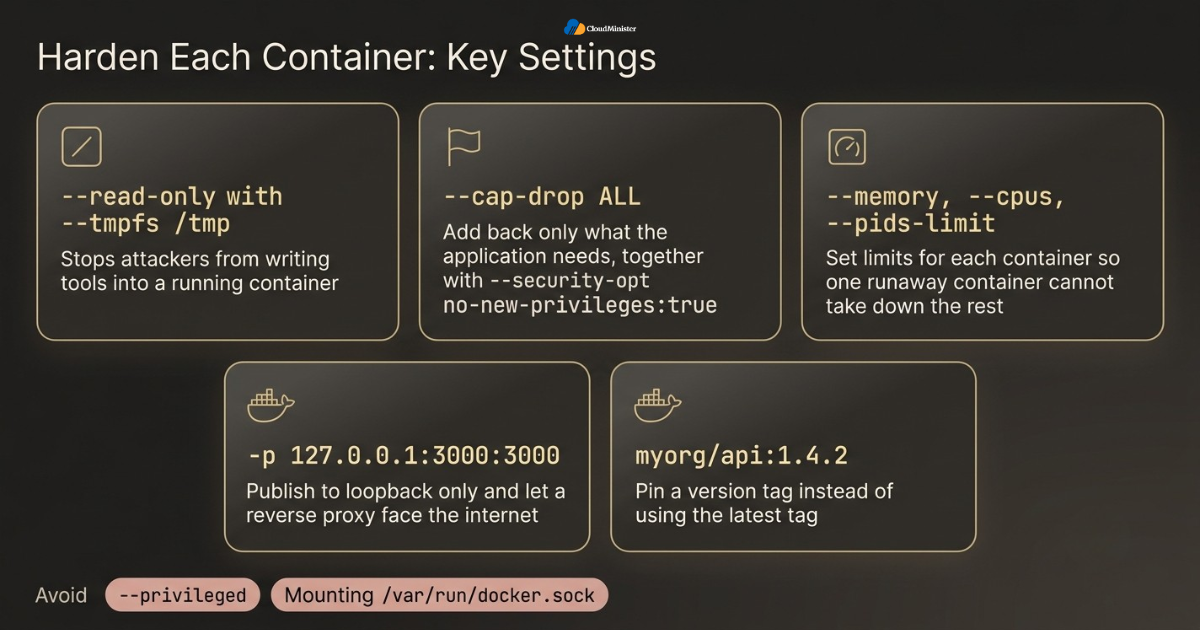
- Least privilege: run the application as a non-root user with the USER instruction, and avoid –privileged, which gives a container nearly full access to the host.
- Drop capabilities: use –cap-drop ALL and add back only what the application needs, together with –security-opt no-new-privileges:true.
- Read only filesystems: –read-only with –tmpfs /tmp stops attackers from writing tools into a running container.
- Protect the socket: never mount /var/run/docker.sock into a container unless you accept that it can control the whole host.
- Trusted images: pull from official or verified publishers, pin versions instead of using the latest tag, and scan images with Trivy or a similar scanner before deployment.
- Keep defaults on: leave Docker’s default seccomp and AppArmor profiles active unless you have a tested reason to change them.
- Reduce escape impact: consider rootless mode or userns-remap when you can accept their limits, because they shrink the damage from a container escape.
- Handle secrets properly: do not bake passwords into images or commit them to Compose files. Use Docker or Compose secrets, or files with strict permissions.
- Detect odd behaviour: runtime tools such as Falco can alert on unexpected activity inside containers.
docker run -d --name api --restart unless-stopped \
  --read-only --tmpfs /tmp \
  --cap-drop ALL --security-opt no-new-privileges:true \
  --memory 512m --cpus 1.0 --pids-limit 200 \
  -p 127.0.0.1:3000:3000 myorg/api:1.4.2
Security is a habit, not a setting, and hardening is part of how you install Docker on a dedicated server, not an optional extra. Practise these flags on an Affordable VPS Hosting test machine first so mistakes cost nothing. On rented hardware you also depend on the provider for physical security and network protection, so ask how Dedicated Servers in India are isolated, how out of band management is protected, and how quickly critical patches are applied. A Web Hosting Company in India that offers managed security reviews can add a second pair of eyes to your configuration. Whether you use Dedicated Server Hosting in India or a VPS Hosting India plan, the same container flags apply.
Pin images by version tag and read the change notes before upgrading. A tag such as latest can change under you overnight, and an update you did not plan is the last thing you want on a production host.
11. Storage, Backups and Resource Limits
Containers are disposable, but data is not. The most important storage decision is to keep application data in named volumes or bind mounts and keep images and containers replaceable. Resource limits are the other half of the job: a single runaway container can take down every other service on the machine if you let it. Setting limits is a basic habit after you install Docker on a dedicated server. Teams that install Docker on a dedicated server for databases should treat storage planning as part of the installation, not an afterthought.
- Storage driver: overlay2 is the default and works on ext4 or XFS. On XFS it needs ftype=1, which you can check by running xfs_info on the mount point that holds Docker’s data.
- Separate disk: place /var/lib/docker on its own volume or partition so images and build cache cannot fill the root filesystem.
- Named volumes: let Docker manage them for databases and uploads, and back them up on a schedule.
- RAID is not a backup: RAID 1 or RAID 10 protects against disk failure, not against deletion, corruption, or ransomware, so keep copies off the server.
- Database consistency: use native dumps such as pg_dump or mysqldump, because copying live database files can produce a broken backup.
- Test restores: restore to a spare machine on a schedule, since an untested backup is only a hope.
- CPU and memory: set –memory and –cpus for each container, or mem_limit and cpus in Compose, and keep the total below physical RAM.
- Process limits: –pids-limit guards against runaway process creation, including fork bombs.
- Cleanup: docker system df shows usage, and docker image prune and docker builder prune remove unused data. Avoid docker system prune -a –volumes on production, because it can remove volumes you still need.
docker run --rm -v app_data:/data -v "$PWD":/backup alpine tar czf /backup/app_data.tar.gz -C /data .
docker system df
Backups should live on a different machine or storage service, ideally in a different location. When you choose Dedicated Server Hosting in India plans, decide early how much drive space and backup storage your volumes will need. A small Affordable VPS Hosting instance can also act as a cheap off site target for encrypted volume archives, provided access is restricted. Ask your Web Hosting Company in India whether snapshot or backup storage is sold separately, and compare it with a VPS Hosting India backup add on. Those who run Dedicated Servers in India for databases should also keep at least one copy outside the data centre.
Test a restore in the same week you create your first backup. Many teams discover a broken archive or a missing file only on the day they badly need it, and a dedicated server leaves no room for that surprise.
12. Monitoring, Updates and Routine Maintenance
A dedicated server is yours to look after, and Docker adds a few new things to watch. Good maintenance is mostly about visibility and rhythm: you see problems early, and you apply updates on a schedule instead of in a panic. Teams that install Docker on a dedicated server and then leave it untouched for a year often face a painful catch up upgrade.
- Quick checks: docker ps, docker stats, and docker logs answer most day to day questions.
- Daemon logs: journalctl -u docker shows problems on the Docker side, such as failed starts or network errors.
- Metrics: Prometheus with cAdvisor and Node Exporter, displayed in Grafana, covers both container and host numbers.
- Alerts: set alerts for high disk use, memory pressure, frequent container restarts, and failed health checks.
- Health checks: define HEALTHCHECK in images or Compose so an unhealthy container is visible at a glance.
- Engine updates: Docker’s repository is not covered by default unattended upgrades, so update Docker packages through apt on a schedule you control.
- Image updates: pull new versions, test in staging, then redeploy with docker compose pull and docker compose up -d.
- Kernel updates: reboot after a new kernel arrives, and keep live restore on to reduce disruption.
- Runbook: keep a short document with install steps, daemon.json, firewall decisions, backup locations, and contacts.
docker stats --no-stream
sudo journalctl -u docker --since "1 hour ago"
sudo apt update && sudo apt install --only-upgrade docker-ce docker-ce-cli containerd.io docker-buildx-plugin docker-compose-plugin
docker compose pull && docker compose up -d
Cost is part of maintenance too. When your monitoring shows steady workloads using the machine all month, running them on rented bare metal can be cheaper than paying cloud rates every hour, which is the idea behind cloud repatriation. A Web Hosting Company in India that offers Dedicated Server Hosting in India, VPS Hosting India, and smaller plans lets you move workloads between tiers without changing provider, and Dedicated Servers in India give the steady base for that approach, while an Affordable VPS Hosting instance suits short lived test stacks.
Related Reading: Cloud repatriation in 2026
Schedule Docker engine upgrades like any other change. Read the release notes, upgrade staging first, and keep live restore enabled so a daemon restart does not interrupt every container at once. Teams that install Docker on a dedicated server and follow this routine tend to see fewer surprises after updates.
13. Troubleshooting Common Errors After You Install Docker on a Dedicated Server
Even a careful setup meets a few predictable errors. Most have a short fix once you know where to look: the service state, the daemon log, the container log, and the host disk, memory, and network. Work from the outside in, and change one thing at a time so you know exactly what fixed the problem. Hardware faults are rare on Dedicated Servers in India, but check disk health and memory errors if crashes look random. If a fault appears only on production, reproduce it on a VPS Hosting India test plan or an Affordable VPS Hosting server and compare.
- Permission denied on the Docker socket: your user is not in the docker group, or the session has not refreshed. Log out and in again, run newgrp docker, or use sudo.
- Cannot connect to the Docker daemon: the service is not running. Check systemctl status docker and read journalctl -u docker.
- Docker will not start after editing daemon.json: the file has invalid JSON or an unknown key. Run dockerd –validate and restore the last working copy.
- Port is already allocated: another container or process holds the port. Find it with ss -tulpn and stop it or choose another port.
- No space left on device: images, build cache, or logs filled the disk. Use docker system df, prune unused data, set log rotation, or move the data root.
- Containers cannot reach the internet: check sysctl net.ipv4.ip_forward, any firewall flush, and DNS settings, then restart Docker so it rebuilds its rules.
- Subnet conflicts with a VPN or private network: set bip and default-address-pools in daemon.json, restart Docker, and recreate the affected networks.
- Published port open despite a UFW deny rule: this is expected behaviour. Bind to 127.0.0.1 or filter in the DOCKER-USER chain.
- Container keeps restarting: read docker logs, then check the exit code and the OOMKilled flag with docker inspect.
Keep a record of every error and fix that you meet after you install Docker on a dedicated server, and store it in your runbook. When a problem repeats, a written note turns a long investigation into a two minute task. If the issue looks like hardware, network, or routing, send your provider a clear ticket with timestamps and command output. A Web Hosting Company in India with a responsive support team can usually narrow this down quickly, and providers of Dedicated Server Hosting in India can also check the physical network port and remote console when a server stops answering.
When a container will not start, read its logs first, then run docker inspect and look at the exit code and the OOMKilled flag. Exit code 137 means the process was killed, and running out of memory is a common reason.
14. Common Mistakes to Avoid When You Install Docker on a Dedicated Server
Most problems on container hosts repeat across teams. Avoiding the usual traps is one of the cheapest ways to improve your setup, and it costs nothing but attention. The same list applies whether you install Docker on a dedicated server on rented hardware or on a machine in your own rack.
- Mixing docker.io from Ubuntu with docker-ce from Docker, which leads to package conflicts and confusing versions.
- Running the convenience script on production instead of using the official repository.
- Publishing databases or admin panels on all interfaces, then relying on UFW to protect them.
- Exposing the Docker API on port 2375 without TLS or any access control.
- Using –privileged or mounting the Docker socket for convenience, and forgetting it later.
- Deploying the latest tag, so an upgrade happens without anyone choosing it.
- Leaving container logs unrotated until the disk fills up.
- Treating RAID as a backup and never testing a restore.
- Skipping Docker updates because unattended upgrades do not cover Docker’s repository by default.
Do not let these mistakes put you off. Each one is easy to prevent with a checklist and a little discipline. The checklist applies equally to a production machine on Dedicated Server Hosting in India and a test machine on a VPS Hosting India plan, and a team that rehearses on Affordable VPS Hosting before changing Dedicated Servers in India avoids most of them.
15. Choosing the Right Hosting Partner for Docker Workloads
The software steps are the same everywhere, but the experience of running them depends heavily on the provider. Remote console access, reinstall speed, network quality, hardware replacement time, and support depth decide how calm your first month will be. This is where the difference between an average host and a capable one becomes visible, especially for anyone planning to install Docker on a dedicated server for a business application.
- Ask any Web Hosting Company in India how quickly it can reinstall an operating system and whether a remote console is included in the plan.
- Confirm that Dedicated Server Hosting in India plans state network speed, bandwidth policy, and hardware replacement terms in writing.
- Check whether the provider offers both Dedicated Servers in India and smaller plans, so staging and production can sit under one account.
- Compare VPS Hosting India offers on virtualization type, because Docker needs a KVM style VPS and not a shared kernel one.
- Look for Affordable VPS Hosting plans with enough RAM and NVMe storage for rehearsals and off site backups.
- Ask whether managed support covers monitoring, patching, and backups, and what remains your responsibility.
- Request written details on backup, restore times, and support hours, since these decide how calm an incident feels.
- Ask about private networking, extra IP addresses, and DDoS protection options before you need them.
- Prefer providers that are honest about limits and never promise zero risk, because honest planning always includes a rollback.
Take time to compare at least two providers before you commit. A Web Hosting Company in India that is open about limits is easier to trust than one that promises everything. Local data centres can reduce delay for Indian users and simplify residency questions, which helps when you install Docker on a dedicated server for regulated workloads. Check that support covers the weeks after launch, since the first days on a new host are when hidden problems tend to appear.
Checklist: Before and After You Install Docker on a Dedicated Server
- Supported 64 bit operating system release confirmed and fully updated.
- SSH keys working, root login and password login disabled, and UFW enabled with only the required ports open.
- Old conflicting packages removed, and Docker installed from the official apt repository with the Buildx and Compose plugins.
- Test container run successfully, and docker info shows the overlay2 storage driver.
- daemon.json set with log rotation and validated before restart.
- Published ports bound to 127.0.0.1 unless a reverse proxy needs them, and confirmed with an outside scan.
- Volumes backed up off the server and one restore tested.
- Provider support, reinstall options, and network terms confirmed with the Web Hosting Company in India.
- Changes rehearsed on a VPS Hosting India or Affordable VPS Hosting test plan before they reach production.
Key Takeaways
- Use Docker’s official apt repository to install Docker on a dedicated server cleanly, and remove conflicting distribution packages first.
- Harden the host before installation: SSH keys, a firewall, automatic security updates, and a working clock.
- Membership of the docker group equals root access, so grant it carefully on any server where you install Docker on a dedicated server.
- UFW does not control ports published by Docker, so bind to 127.0.0.1 and expose only a reverse proxy.
- Set log rotation, resource limits, and tested backups before real data arrives.
- A dedicated server suits steady, heavy workloads, while Affordable VPS Hosting and VPS Hosting India plans suit learning and staging.
- Dedicated Server Hosting in India gives you the bare metal base, and Dedicated Servers in India help when data location and latency matter.
- Update Docker on a schedule, since unattended upgrades skip Docker’s repository by default.
- A Web Hosting Company in India with clear support terms makes it easier to install Docker on a dedicated server and keep it healthy.
Need Help Choosing the Right Server for Docker?
Tell us about your containers, traffic, and storage needs. The CloudMinister team will help you pick the right setup and support you from first install to production.
Conclusion
One pattern holds throughout this guide. A reliable container host comes from careful preparation, not from one clever command. The best way to install Docker on a dedicated server is to harden the system first, use the official repository, verify every step, and then add the settings that production needs: log rotation, firewall discipline, resource limits, backups, and monitoring. Each of these takes minutes, and together they prevent most of the outages that catch new teams.
Remember that the job is not finished when the first container runs. Keep watching disk, memory, and logs, update on a schedule, and write down what you learn. Rehearse changes on a small plan first, choose a partner that is honest about limits, and treat your runbook as a living document. With that habit, anyone on your team can install Docker on a dedicated server again on a new machine and get the same safe result, whether the server sits in Dedicated Servers in India or elsewhere. A Web Hosting Company in India that offers Dedicated Server Hosting in India and VPS Hosting India gives you room to grow without a risky move.
Frequently Asked Questions
What is the best way to install Docker on a dedicated server?
Use Docker’s official apt repository. Remove conflicting packages, add the signing key and repository, then install docker-ce, docker-ce-cli, containerd.io, docker-buildx-plugin, and docker-compose-plugin. This method gives you current packages and normal apt updates.
Can I install Docker on a dedicated server without root access?
Installing the Docker packages needs root or sudo. After an administrator installs the prerequisites, rootless mode can run the daemon under an unprivileged user, though it has limits such as restrictions on privileged ports and some network features.
How long does it take to install Docker on a dedicated server?
On a healthy connection the Docker install itself takes a few minutes. Preparing and hardening the server, configuring the daemon, and testing backups take longer, so plan an afternoon for a careful production setup.
Which Linux distribution should I choose to install Docker on a dedicated server?
Ubuntu LTS and Debian are popular choices, and Red Hat family systems work as well. Choose a release that Docker supports and that your team can maintain, and check Docker’s supported platforms page before you begin.
Do I need Docker Desktop on a server?
No. Docker Desktop is a desktop application. On a server you install Docker Engine, which includes the daemon and the command line client, plus the Compose and Buildx plugins.
Why can people reach my container when UFW blocks the port?
Docker publishes ports through its own network address translation and forwarding rules, which follow a different path from the traffic UFW normally filters. Bind the port to 127.0.0.1 and use a reverse proxy, or filter in the DOCKER-USER chain, and always confirm with an outside scan.
How much RAM and CPU do I need?
Docker itself is light. Add up the memory and CPU limits of the containers you plan to run and keep a reserve of a couple of gigabytes for the host. Monitor real usage for a few weeks and adjust, especially if you first test on Affordable VPS Hosting.
Should I choose a dedicated server or a VPS for Docker?
Use a VPS for learning, staging, and light workloads. Choose a dedicated server when you need steady performance, more memory, local NVMe storage, or GPUs. Many teams use VPS Hosting India plans for rehearsal and Dedicated Server Hosting in India for production.
How do I update Docker later?
Because Docker comes from its own repository, update it with apt, for example by upgrading docker-ce, docker-ce-cli, containerd.io, and the two plugins. Read the release notes, test on staging first, and keep live restore enabled to reduce disruption.
Is Docker Compose included with Docker Engine?
Compose is installed as a plugin through the docker-compose-plugin package. Use the docker compose command with a space. The older standalone docker-compose tool is no longer the recommended way to run Compose.
Can I run GPU workloads in Docker on a dedicated server?
Yes. Install the NVIDIA driver on the host, add the NVIDIA Container Toolkit, configure it for Docker, and run containers with the GPU option. Check NVIDIA’s documentation for the exact steps for your driver and distribution.
How does a Web Hosting Company in India help with a Docker setup?
A Web Hosting Company in India supplies the hardware, network, and support around your setup. Ask about remote console access, reinstall speed, backup options, and the range of Dedicated Servers in India and Dedicated Server Hosting in India plans, so you can scale from testing to production under one provider.