Microsoft ends extended support for Windows Server 2016 on January 12, 2027, so every team still running it needs a clear plan. Moving from Windows Server 2016 to 2025 can be done as an in-place upgrade or as a fresh side by side migration, and the right choice depends on hardware age, application support, Active Directory roles, and how much rollback safety you need. This guide explains both routes step by step, with checklists, risks, and testing advice. It also shows where a Web Hosting Company in India, Windows Dedicated Server Hosting, and VPS Server Hosting in India fit when the new server has to live on fresh infrastructure.
Every system administrator knows the feeling of a task that keeps sliding down the to-do list. For many businesses, Windows Server 2016 has been that quiet, reliable machine in the corner that nobody wanted to touch. That comfort is ending. The practical question now is how to handle Windows Server 2016 to 2025, and whether to upgrade the existing machine or build a new one and move everything across. Many Indian businesses now compare Windows Dedicated Server Hosting and VPS Server Hosting in India while they plan Windows Server 2016 to 2025, because the new server also needs a home.
Both methods work, and Microsoft supports both, but they behave very differently when something goes wrong. An in-place upgrade is faster and keeps your settings, yet it also carries years of old drivers and configuration into the new system. A fresh migration takes more effort, yet it gives you a clean server and a simple way back. Choosing between them for Windows Server 2016 to 2025 is mostly a question of risk, not preference. Teams that work with a trusted Web Hosting Company in India often make this choice together with their provider, since storage, network, and backup design decide how safe each route really is.
This guide walks through the whole process in plain language. You will see what changes in the new release, how to audit your current server, the exact steps for each method, how to handle Active Directory and other roles, and how to test and roll back safely. We also cover timelines, hosting choices, and common mistakes. Whether you are planning Windows Server 2016 to 2025 for the first time or the fiftieth, the goal is the same: finish before support ends, keep users working, and avoid surprises.
Table of Contents
- 1. Why Replacing Server 2016 With the 2025 Release Is Urgent Right Now
- 2. What You Gain When Moving From Server 2016 to the 2025 Release
- 3. In-Place Upgrade vs Fresh Migration: The Core Differences
- 4. Pre-Upgrade Audit: What to Check Before Touching Anything
- 5. Step by Step: In-Place Upgrade From Server 2016 to the 2025 Release
- 6. Step by Step: Fresh Migration From Server 2016 to the 2025 Release
- 7. Handling Active Directory, DNS, DHCP, File Servers, and IIS
- 8. Security Risks of Staying on Windows Server 2016 and the ESU Option
- 9. Testing, Rollback, and Validation
- 10. Common Mistakes That Break Upgrade Projects From Server 2016 to the 2025 Release
- 11. Choosing the Right Hosting Target and Partner
- 12. Dedicated Server or VPS: Matching the Workload to the Host
- 13. Cost, Support, and Licensing Questions for Hosted Windows Servers
- 14. Real Scenarios: Which Method and Which Host Fit
- 15. A Practical Eight Week Plan to Move From Server 2016 to the 2025 Release
- Key Takeaways
- Conclusion
- Frequently Asked Questions
1. Why Windows Server 2016 to 2025 Is Urgent Right Now
Microsoft has confirmed that extended support for Windows Server 2016 ends on January 12, 2027. After that date the regular monthly security updates stop, and the January 2027 update is the last one most customers will receive. Mainstream support already ended in January 2022, so the server has been getting security fixes only for several years. It will not shut down on the deadline day. It simply becomes a growing target. Starting Windows Server 2016 to 2025 now gives you time to test properly instead of rushing.
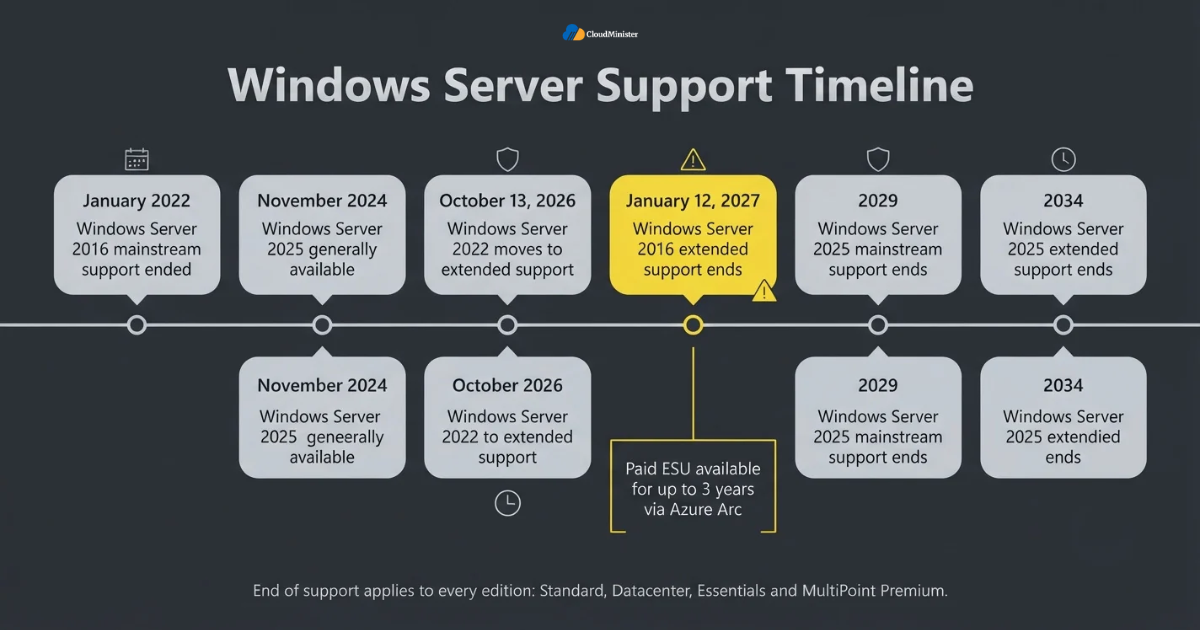
- The end of support date applies to every edition, including Standard, Datacenter, Essentials, and MultiPoint Premium.
- After January 12, 2027, Microsoft no longer ships security updates through Windows Update or WSUS, unless the server is enrolled in the paid Extended Security Updates program.
- The exposure is large. Lansweeper data reported by The Register in March 2026 showed that Windows Server 2016 still made up 20.3 percent of all the servers Lansweeper monitors.
- Windows Server 2022 moved from mainstream to extended support on October 13, 2026, while Windows Server 2025 has mainstream support through 2029 and extended support through 2034, which gives it the longest runway.
- Other deadlines may be hiding on the same machine. SQL Server 2016 reached the end of extended support in July 2026, so the database layer may need its own plan.
- Windows Server 2025 allows a direct in-place upgrade from Windows Server 2016, because nonclustered systems can now jump up to four versions at a time. That makes Windows Server 2016 to 2025 possible in one step.
- Starting early matters because vendor confirmations, license purchases, hosting orders placed with a Web Hosting Company in India, and change approvals usually take longer than the technical work.
- Treating Windows Server 2016 to 2025 as a planned project costs far less than recovering from an emergency after an incident.
Before choosing a method, write down your real downtime budget and your rollback deadline. Teams that know these two numbers can decide between an in-place upgrade and a fresh migration in a single meeting, instead of arguing across several.
2. What You Gain When Moving From Windows Server 2016 to 2025
Windows Server 2025 became generally available in November 2024, and it builds on the security and storage work that arrived in Windows Server 2019 and 2022. For administrators the benefit is not just a newer logo on the sign in screen. You get a longer support life, stronger default security, faster storage, and better options for hybrid management. Those gains are the real business case for Windows Server 2016 to 2025, and they help you justify the project to managers who only see cost. A Web Hosting Company in India that already offers Windows Server 2025 images can also shorten your testing time.
- Hotpatching through Azure Arc can reduce the number of reboots needed for monthly security updates, although it is a subscription feature and needs Arc enabled servers.
- SMB over QUIC is available in the Standard and Datacenter editions, which allows secure file access over untrusted networks without a traditional VPN.
- Storage improvements, including better NVMe support, help databases and virtual machine hosts that were limited by older storage stacks.
- Active Directory gains an optional 32K database page size and a new functional level, which improves scale for large directories.
- Stronger defaults, such as TLS 1.3 being enabled by default and tighter SMB signing rules, raise the baseline protection of every server.
- Hyper-V receives improvements, including GPU partitioning support, which matters for teams that run demanding workloads in virtual machines. Affordable Windows Dedicated Server Plans with enough cores and RAM make such virtual machine hosts practical.
- Azure Arc and Windows Admin Center make it easier to manage a mix of on premises and hosted servers from one place, including VPS Server Hosting in India plans and Windows Dedicated Server Hosting.
- These gains matter most when Windows Server 2016 to 2025 is combined with a move to modern Windows Dedicated Server Hosting, where faster disks and newer processors raise the benefit even more.
3. In-Place Upgrade vs Fresh Migration: The Core Differences
An in-place upgrade runs the Windows Server 2025 setup on top of the existing installation and keeps roles, settings, and data on the same machine. A fresh migration builds a brand new Windows Server 2025 server and moves workloads across one at a time. Both are valid for Windows Server 2016 to 2025, but they trade speed for safety in opposite directions. The table below compares them, and the points that follow explain when each one wins.
| Factor | In-place upgrade | Fresh migration |
| Speed | Faster, often a few hours per server | Slower, from days to several weeks |
| Hardware | Existing server must meet 2025 needs | New, rebuilt, or hosted server of your choice |
| Rollback | Depends on backup or checkpoint restore | Old server stays untouched as the fallback |
| Configuration | Carries over old settings and clutter | Clean start with only what you choose |
| Downtime | One longer outage during setup | Short cutover for each workload |
| Best for | Healthy servers with simple roles | Domain controllers, old hardware, complex apps |
- Choose an in-place upgrade when the server is healthy, runs few roles, and the application vendor confirms support on Windows Server 2025.
- Choose a fresh migration when the hardware is old, the system has years of configuration drift, or you want an instant way back.
- Many teams prefer to add new Windows Server 2025 domain controllers and retire the old ones, even though an in-place upgrade of a domain controller is possible.
- Virtual machines make in-place upgrades safer, because you can take a checkpoint first, while physical servers depend entirely on image backups.
- A fresh migration also lets you switch between Server Core and Desktop Experience, which an in-place upgrade does not allow. It also lets you move to new Windows Dedicated Server Hosting without touching the old machine.
- Licensing is similar for both routes, since either one needs valid Windows Server 2025 licenses and matching client access licenses, whether the server runs in your office or on Windows Dedicated Server Hosting.
- Smaller workloads can leave an aging physical server and move to Windows VPS Hosting in India, which is a form of fresh migration with lower running cost.
- Do not choose by habit. Compare both methods against your downtime budget, your rollback needs, and the age of your hardware, then compare a Windows Server 2016 to 2025 target on VPS Server Hosting in India against keeping your own machine.
A simple rule works well for Windows Server 2016 to 2025. If you cannot afford to rebuild a server from its backup, do not upgrade it in place. If you can restore it quickly and the applications are supported, the in-place route saves real time, especially for a single role server.
4. Pre-Upgrade Audit: What to Check Before Touching Anything
Most failed upgrades are lost before they start, during the weeks when nobody took an inventory. An audit takes a day or two, and it answers the questions that decide the method: which roles run on the machine, which applications depend on it, whether the hardware qualifies, and whether licenses are in place. Treat the audit as the first deliverable of any Windows Server 2016 to 2025 project, whether the server sits in your office or with a Web Hosting Company in India.
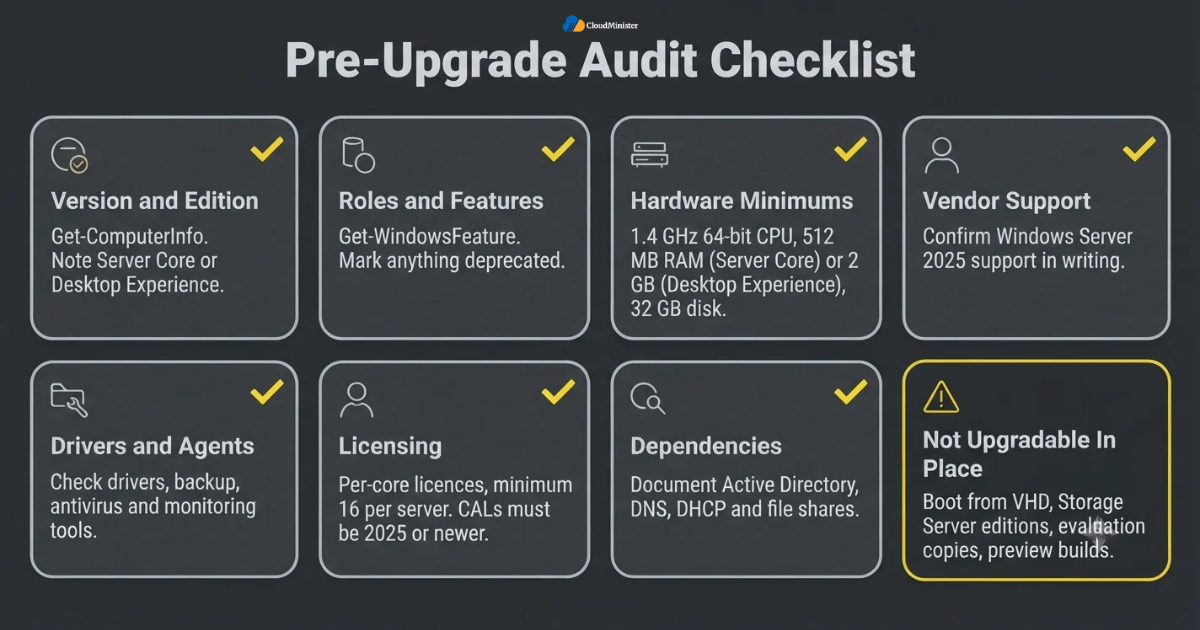
- Record the exact version and edition with Get-ComputerInfo, and note whether the server is Server Core or Desktop Experience, since that choice cannot change during an in-place upgrade.
- List installed roles and features with Get-WindowsFeature, and mark anything that Microsoft or the vendor has deprecated.
- Compare the hardware with Microsoft’s published minimums: a 1.4 GHz 64 bit processor, 512 MB of RAM for Server Core or 2 GB for Desktop Experience, and 32 GB of disk space. Real workloads need much more. If the hardware fails the check, Affordable Windows Dedicated Server Plans are a practical replacement.
- Ask every application vendor in writing whether the product is supported on Windows Server 2025, and record the answer with the version number.
- Check third party drivers, backup agents, antivirus, and monitoring tools, because they are a common cause of failed in-place upgrades. Drivers matter less on VPS Server Hosting in India, since the host manages the hardware, but agents still matter.
- Confirm licensing. Windows Server 2025 is licensed per core with a minimum of 16 core licenses per server, and client access licenses must be the 2025 version or newer. Ask your Web Hosting Company in India whether it supplies Windows Server licensing.
- Document Active Directory, DNS, DHCP, and file share dependencies so nothing is forgotten on cutover day in your Windows Server 2016 to 2025 project.
- Look for setups that cannot be upgraded in place, such as boot from VHD, Storage Server editions, evaluation copies, and preview builds.
An audit often uncovers old local administrator accounts, shared service passwords, and forgotten remote access tools. Remove or rotate them before the project starts, so they do not travel into the new environment.
Related Reading: Application migration strategy guide
5. Step by Step: In-Place Upgrade From Windows Server 2016 to 2025
An in-place upgrade is the faster path when the server is healthy and the audit came back clean. The process looks simple on paper, yet every step has a reason behind it. Microsoft supports a direct jump from Windows Server 2016 to 2025 on nonclustered systems, so you do not need to hop through 2019 or 2022 first. Follow the sequence below on a test copy, then repeat it on production. The same steps apply to a rented server, so Windows Dedicated Server Hosting customers can use them as written.
- Take a full backup or a virtual machine checkpoint before starting Windows Server 2016 to 2025, and confirm that you can restore from it. This is your only real rollback.
- Install the latest cumulative updates on Windows Server 2016 and reboot, so the starting point is fully patched.
- Remove or disable third party antivirus, backup agents, and disk encryption tools if the vendor advises it, and note what must be reinstalled later.
- Check free space on the system drive and make sure no reboot is pending, so setup does not stop halfway.
- Mount the Windows Server 2025 ISO, run setup.exe as an administrator, and enter the product key or activation method you plan to use. On a hosted VPS, confirm that the console lets you mount an ISO, which is worth asking any provider of VPS Server Hosting in India.
- When asked, choose the option to keep personal files and apps, and pick the same edition and installation type, such as Desktop Experience to Desktop Experience.
- Let setup run without interruption. The server restarts several times, so keep a remote console or out of band access ready.
- After the first sign in, install Windows Server 2025 updates and drivers, and reinstall the agents you removed.
- Run the validation checks described later in this guide before telling users the Windows Server 2016 to 2025 upgrade is finished.
Run the full Windows Server 2016 to 2025 upgrade on a cloned copy of the server first. A clone shows you the real timing, the driver problems, and the application prompts, so the production upgrade stops being a surprise.
6. Step by Step: Fresh Migration From Windows Server 2016 to 2025
A fresh migration builds a clean Windows Server 2025 server next to the old one and moves workloads across in controlled stages. Moving Windows Server 2016 to 2025 this way takes more planning, but the old server stays online and untouched until the new one is proven. That is why many teams choose it for important systems. The new server can be a new physical machine, a virtual machine, or one of the Affordable Windows Dedicated Server Plans you can rent when you want fresh hardware without buying it. A reliable Web Hosting Company in India can also provide the temporary capacity a side by side build needs.
- Build the new server with Windows Server 2025, on local hardware, Windows Dedicated Server Hosting, or Windows VPS Hosting in India, using the same or a larger edition, and install all updates before adding any workload.
- Join it to the domain with a temporary name and a temporary IP address, so both servers can run side by side. Check that Affordable Windows Dedicated Server Plans include extra IP addresses, since staging needs them.
- Install the required roles and applications using current vendor installers, instead of copying old program folders.
- Move data with robocopy or the Storage Migration Service, which can copy files, shares, and permissions from the old server to the new one. On VPS Server Hosting in India plans, check the disk allowance before copying large shares.
- Use Windows Server Migration Tools or role specific export and import commands for services such as DHCP.
- Test everything on the new server with a copy of production data and a small group of pilot users.
- Lower DNS time to live values in advance, schedule a short cutover, and then switch names, shares, and DNS records to the new server.
- Keep the old Windows Server 2016 machine powered on but isolated for an agreed observation period before you finish Windows Server 2016 to 2025 and retire it.
Give the new server a temporary name during Windows Server 2016 to 2025 and switch to the production name only at cutover. Using the final name too early can create duplicate DNS records and authentication problems that are hard to trace.
Related Reading: Hosting migration without downtime
7. Handling Active Directory, DNS, DHCP, File Servers, and IIS
Roles are where upgrades succeed or fail. A single file server is simple, but a domain controller touches every user and device in the company. The safe approach is to treat each role as its own small project with its own test and rollback plan. For Windows Server 2016 to 2025 the order of work matters as much as the method, and Active Directory deserves the most care. A Web Hosting Company in India that manages your servers can often run the supporting checks.
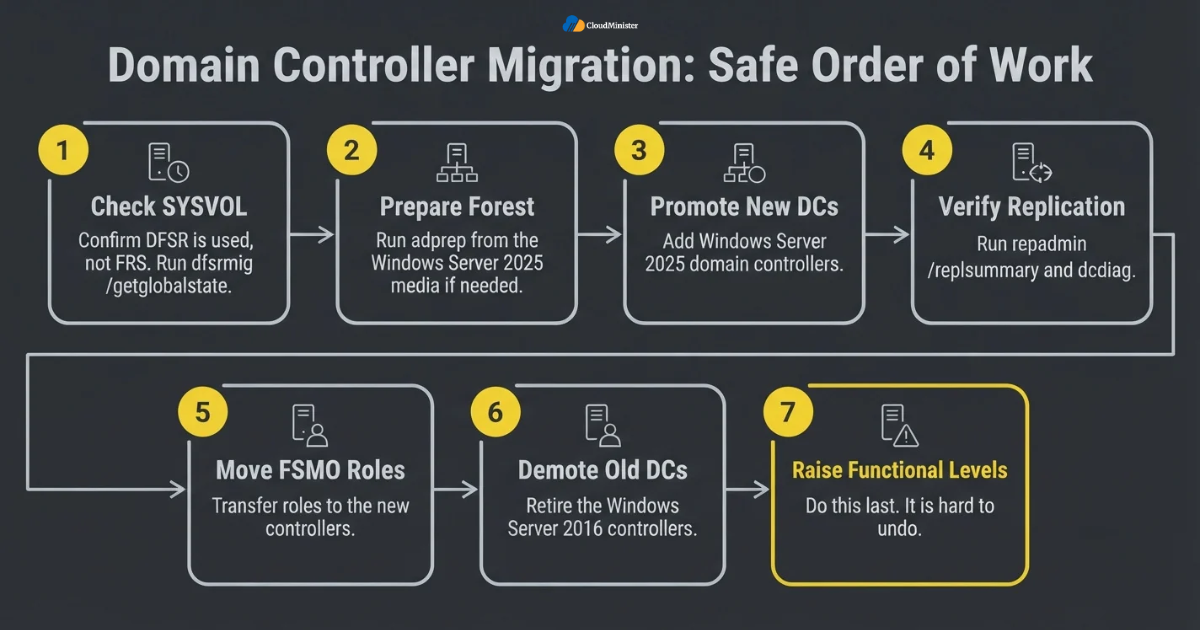
- Domain controllers: for Windows Server 2016 to 2025, confirm that SYSVOL replicates with DFSR instead of the deprecated FRS by running dfsrmig /getglobalstate, and migrate first if it does not.
- Prepare the forest and domain with adprep from the Windows Server 2025 media if the promotion wizard does not extend the schema for you.
- A common plan is to promote new Windows Server 2025 domain controllers, verify replication with repadmin /replsummary and dcdiag, move the FSMO roles, and then demote the old controllers. Domain controllers can run on VPS Server Hosting in India plans, although many teams keep at least one on separate infrastructure.
- Raise the domain and forest functional levels last, and only after every domain controller runs a supported version, because raising a level is hard to undo.
- DNS and DHCP: export DHCP with Export-DhcpServer, import it with Import-DhcpServer on the new server, authorize it, and then deactivate the old scope.
- File servers: use the Storage Migration Service to inventory, transfer, and cut over, and review share and NTFS permissions after the move. Large shares may need the storage of Windows Dedicated Server Hosting rather than a small Windows VPS Hosting in India plan.
- IIS and web apps: export site bindings, application pools, certificates, and configuration, then test with a hosts file entry before changing public DNS. Public sites on Windows VPS Hosting in India or dedicated servers need the same care.
- Print servers, scheduled tasks, and service accounts are easy to forget in Windows Server 2016 to 2025 projects, so add them to the inventory and test each one.
Related Reading: Migrate a website without losing SEO
8. Security Risks of Staying on Windows Server 2016 and the ESU Option
Staying on an unsupported server is not a neutral choice. According to the 2026 Verizon Data Breach Investigations Report as covered by TechRepublic, exploiting software vulnerabilities is now the leading way breaches begin, at 31 percent of initial access. An operating system that no longer receives patches hands attackers a permanent head start. That is why Windows Server 2016 to 2025 is as much a security project as an operations project.
- Without patches, newly discovered flaws in Windows components such as SMB, RDP, and Active Directory stay open for the life of the server.
- Auditors and cyber insurers usually expect supported operating systems, so an unsupported server can create compliance findings, which Windows Server 2016 to 2025 projects help remove.
- Extended Security Updates for Windows Server 2016 are available for up to three years after January 12, 2027, delivered through Azure Arc, and they cover critical and important security fixes.
- ESU does not add new features or general quality fixes, so it is a bridge and not a destination.
- Isolate any server that must stay on Windows Server 2016 for a while: restrict inbound access, block web browsing, and segment it on the network. A Web Hosting Company in India can help apply segmentation and firewall rules.
- Disable legacy protocols such as SMBv1 and old TLS versions on every server, including servers on VPS Server Hosting in India plans, whatever upgrade method you choose.
- Review local administrators, service accounts, and remote desktop exposure both before and after the move. This applies equally to Windows Dedicated Server Hosting and to Windows VPS Hosting in India.
- Use ESU only for workloads that truly cannot move yet, and set a firm date to finish Windows Server 2016 to 2025 for them too.
Treat the new Windows Server 2025 server as production from its first day. Apply updates before it holds any data, use unique administrator passwords, keep the firewall on, and remove temporary migration accounts as soon as the cutover is confirmed.
9. Testing, Rollback, and Validation
A migration plan without a tested rollback is only a hope. The in-place route depends on backups and checkpoints, while the fresh route depends on keeping the old server intact. Whichever path you take for Windows Server 2016 to 2025, define success in numbers before the project starts, such as login success rate, application response time, and replication health, so the team can call the work finished with confidence.
- Test a restore of your backup in a lab before the upgrade. A backup that has never been restored is an assumption, not a safety net. Ask your Web Hosting Company in India for its latest restore time and record it.
- For in-place Windows Server 2016 to 2025 upgrades, treat the backup or checkpoint as the real rollback, and do not rely on the setup program to recover from a late failure.
- For fresh Windows Server 2016 to 2025 migrations, rollback means pointing DNS and shares back to the old server, so keep it running and unchanged during the observation period.
- After the move, check Event Viewer, service status, and failed scheduled tasks, and compare them with the baseline you recorded earlier. Check the VPS Server Hosting in India resource graphs too if the server is hosted.
- Validate directory health with dcdiag and repadmin /replsummary if any domain controller was involved.
- Test applications with real user journeys, including logins, reports, printing, and integrations, and not only a ping test.
- Compare performance before and after, because a correct but slow server still creates support tickets. Test disk speed on the new Windows Dedicated Server Hosting plan or Windows VPS Hosting in India instance before users arrive.
- On Hyper-V hosts, update virtual machine configuration versions with Update-VMVersion only when you are sure those machines will not return to an older host.
Keep the old server or the pre-upgrade backup for at least one full business cycle after Windows Server 2016 to 2025, such as a month end close. Rarely used jobs, reports, and integrations often show their problems only when they finally run.
Related Reading: Cloud migration checklist for 2026
10. Common Mistakes That Break Windows Server 2016 to 2025 Projects
Most outages during a server upgrade trace back to a short list of repeatable mistakes. None of them is exotic. They come from skipped audits, untested backups, and rushed schedules. Avoiding them is one of the cheapest improvements you can make to your Windows Server 2016 to 2025 plan, and it protects your reputation with the business as well.
- Skipping the vendor check and discovering after the upgrade that a key product is not supported on Windows Server 2025.
- Starting an in-place upgrade without a verified restore point, which leaves no clean way back.
- Upgrading a domain controller without checking replication health and SYSVOL status first.
- Forgetting that client access licenses and per core licenses must be bought for the new version before cutover, and hosting licenses should be checked with the Web Hosting Company in India as well.
- Leaving old drivers, agents, or security software in place and letting them block setup.
- Ignoring certificate bindings, service accounts, and scheduled tasks that quietly depend on the old server.
- Choosing hosting on price alone, such as Affordable Windows Dedicated Server Plans without checking support, or a small Windows VPS Hosting in India plan where Windows Dedicated Server Hosting is needed.
- Retiring the old server on the same day as the cutover, which removes the safety net while hidden problems are still appearing.
- Treating Windows Server 2016 to 2025 as one big weekend event instead of small stages that can each be tested and reversed.
11. Choosing the Right Hosting Target and Partner
Where the new server lives is as important as how you move to it. If your old server sits in an office closet, the migration is a good moment to ask whether that still makes sense. A capable Web Hosting Company in India can host the new Windows Server 2025 environment, handle backups and monitoring, and support the cutover window. For many businesses this turns Windows Server 2016 to 2025 into a modernization step rather than only a version change. Choosing the host well makes Windows Server 2016 to 2025 much smoother.
- Large or database heavy workloads often fit best on Windows Dedicated Server Hosting, where the whole machine, its disks, and its network belong to you.
- Smaller application servers, test systems, and departmental tools can move to Windows VPS Hosting in India for lower cost and easier scaling.
- Compare Affordable Windows Dedicated Server Plans by core count, RAM, storage type, and bandwidth, and not only by monthly price.
- Ask whether the provider licenses Windows Server 2025 for you or expects you to bring your own license, and get the answer in writing.
- Check that VPS Server Hosting in India plans include snapshots, backups, and full administrator access, since you need all three for a safe migration.
- Confirm the data location if you work in a regulated industry, because data residency rules can decide which data center you may use, and ask whether your Windows Dedicated Server Hosting or VPS Server Hosting in India plan sits in an Indian data center.
- Ask the Web Hosting Company in India for documented backup and restore times, support hours, and an escalation path for the cutover night.
- Make sure the provider of VPS Server Hosting in India or dedicated servers can supply Windows Server 2025 images or ISO support, along with remote console access for troubleshooting.
- Prefer a Web Hosting Company in India that shares real migration examples, including what went wrong and how it was fixed.
12. Dedicated Server or VPS: Matching the Workload to the Host
Once you decide to build the new server on hosted infrastructure, the next choice is its size. Affordable Windows Dedicated Server Plans give one customer a whole physical machine, while Windows VPS Hosting in India gives a slice of a larger server at a lower price. Both can run Windows Server 2025 well. A good Web Hosting Company in India will size the machine from your audit numbers instead of guessing, and that sizing step decides how smooth the move feels.
- Pick Windows Dedicated Server Hosting when the workload needs steady CPU, large memory, or fast local storage, such as SQL Server, large file shares, or Hyper-V hosts.
- Pick a Windows VPS Hosting in India plan for application servers, small databases, remote desktop hosts, and test systems that do not need a whole machine.
- Affordable Windows Dedicated Server Plans work well for consolidating several old Windows Server 2016 machines onto one Windows Server 2025 Hyper-V host.
- VPS Server Hosting in India plans are easy to resize, so a server that starts small can grow if the first estimate was low.
- Windows VPS Hosting in India suits staging and rehearsal, because a clone of the old server can run there for a short test period.
- Affordable Windows Dedicated Server Plans should be checked for RAID options, since a single disk failure on one server is a real risk.
- Affordable Windows Dedicated Server Plans also give you more control over the hypervisor and hardware features, which helps virtualization heavy designs.
- For high availability needs, consider two Windows VPS Hosting in India servers or two Affordable Windows Dedicated Server Plans in a failover design.
- Ask your provider for sizing advice based on peak CPU, memory use, and disk growth from the audit.
Ready to Run Windows Server 2025 on a Fast, Reliable VPS?
Move your workloads to CloudMinister Windows VPS Server hosting with full administrator access, snapshots, backups, and 24/7 expert support. Our team will help you size the right plan for your migration. New clients also get a free consultation before they commit.
13. Cost, Support, and Licensing Questions for Hosted Windows Servers
Price is only one part of the decision. A low monthly fee means little if support is slow, backups are missing, or licensing is unclear. Compare Windows VPS Hosting in India and Windows Dedicated Server Hosting on the full cost of the project, including licenses, backups, and the staff time you save. A transparent Web Hosting Company in India will put these items in writing and explain what each plan includes before you sign.
- Compare Affordable Windows Dedicated Server Plans on total cost, including Windows Server licenses, backup storage, and extra IP addresses.
- Ask whether Windows VPS Hosting in India plans include a Windows license or whether you must bring your own.
- Check that VPS Server Hosting in India plans include snapshots, because a snapshot before the upgrade is a quick safety step.
- Confirm what support covers, such as migration help, reboots, and console access, and what remains your own job.
- Affordable Windows Dedicated Server Plans can lower long term cost for stable workloads, since you pay for one strong machine instead of many small ones.
- Windows VPS Hosting in India can lower cost for small workloads, but check the limits on CPU, RAM, and bandwidth.
- Ask how Affordable Windows Dedicated Server Plans are monitored, and who responds when a disk or network alert appears.
- Ask how a Web Hosting Company in India handles hardware replacement and how long it usually takes.
- Keep the contract flexible, so you can move from VPS Server Hosting in India to a dedicated server if the workload grows.
14. Real Scenarios: Which Method and Which Host Fit
Theory becomes useful when it meets a real situation. The scenarios below show how the same decision changes with the workload, and they apply to most Windows Server 2016 to 2025 projects. In each case the method and the host are chosen together, because the host sets the limits on speed, rollback, and cost.
- A single healthy file server on a virtual machine: an in-place upgrade with a checkpoint is usually enough, and no new hosting is needed.
- An aging physical server with unsupported drivers: a fresh migration to Affordable Windows Dedicated Server Plans removes the hardware risk at the same time.
- A small business with one web application: a fresh migration to Windows VPS Hosting in India keeps cost low and gives a clean server.
- A domain controller pair: add new Windows Server 2025 controllers, move the roles, and demote the old ones, whether they sit on site or on VPS Server Hosting in India.
- A database server with heavy disk use: choose Windows Dedicated Server Hosting for steady performance, and rehearse the cutover on a copy first.
- A development and test group: use Windows VPS Hosting in India for disposable copies, and keep production on Affordable Windows Dedicated Server Plans.
- A regulated business that must keep data in the country: confirm the data center location with your Web Hosting Company in India before choosing any plan.
- A legacy application with no vendor answer: keep the old server isolated, enroll it in ESU if needed, and test the application on a cloned VPS Server Hosting in India instance.
- A growing company with many small servers: consolidate them onto Affordable Windows Dedicated Server Plans running Hyper-V, and retire the old machines in stages.
15. A Practical Eight Week Plan for Windows Server 2016 to 2025
The deadline is close, so a calendar is more useful than theory. Eight weeks is enough for most small and mid size environments if work starts now and decisions are made quickly. Larger estates should start with the most exposed servers first. The plan below gives a realistic order for Windows Server 2016 to 2025 and leaves room for testing.
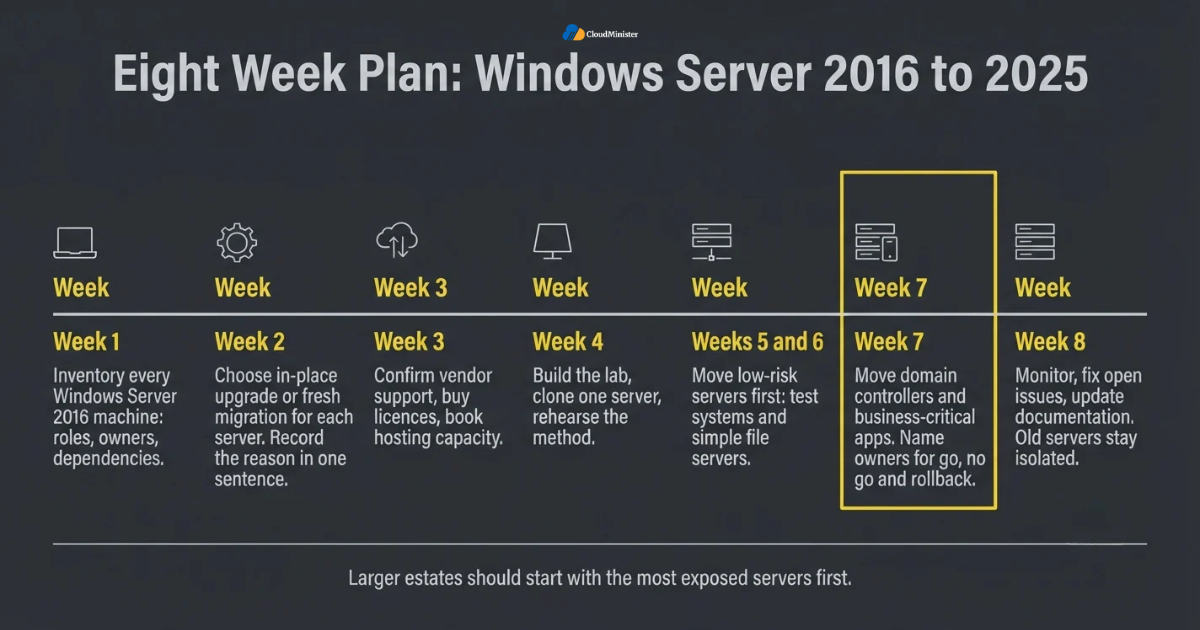
- Week one: inventory every Windows Server 2016 machine, with its roles, owners, and application dependencies.
- Week two: decide on an in-place upgrade or a fresh migration for each server, and record the reason in one sentence.
- Week three: confirm vendor support, buy licenses, and book hosting capacity if new infrastructure is needed.
- Week four: build the lab, clone one server, and rehearse the chosen method from start to finish.
- Weeks five and six: move low risk servers first, such as test systems and simple file servers.
- Week seven: move domain controllers and business critical applications, with named owners for go, no go, and rollback.
- Week eight: monitor, fix open issues, and update documentation while old servers stay isolated.
- After the deadline: remove whatever is left on Windows Server 2016, or isolate it and enroll it in ESU while you finish.
Do not leave domain controllers for the final week. Move them early, because many other roles depend on a healthy directory and a calm migration team.
Checklist: Windows Server 2016 to 2025 Readiness Review
- Downtime budget and rollback deadline agreed with the business.
- Inventory of roles, applications, and dependencies completed.
- Method chosen for each server, with a written reason.
- Vendor support for Windows Server 2025 confirmed in writing.
- Windows Server 2025 and client access licenses purchased.
- Full backup taken and a restore successfully tested.
- Lab rehearsal completed on a cloned server.
- Domain controller health and SYSVOL replication verified.
- Cutover steps, owners, and rollback trigger documented.
- Hosting plan sized and licensing confirmed, whether Affordable Windows Dedicated Server Plans or a VPS.
- Old server kept isolated until the observation period ends.
Key Takeaways
- Microsoft ends extended support for Windows Server 2016 on January 12, 2027, so Windows Server 2016 to 2025 should be planned now.
- Windows Server 2025 supports a direct in-place upgrade from 2016 on nonclustered systems, with no stop at 2019 or 2022.
- In-place upgrades are fast but depend on backups, while fresh migrations are safer because the old server stays untouched.
- Domain controllers, old hardware, and complex applications usually point toward a fresh migration.
- Every step needs a tested rollback, and the old server should stay available for a full business cycle.
- ESU is a paid bridge for up to three years, not a replacement for upgrading.
- A reliable Web Hosting Company in India can supply licensing, monitoring, backups, and cutover support in one place.
- Windows Dedicated Server Hosting suits heavy workloads, while VPS Server Hosting in India suits smaller servers and test systems.
- Affordable Windows Dedicated Server Plans suit consolidation, and Windows VPS Hosting in India suits staging and small applications.
Planning Your Windows Server 2016 to 2025 Migration? Talk to Our Experts
Not sure whether an in-place upgrade or a fresh migration is right for you? Our team will review your setup, recommend the safest route, and help you plan the move before support ends. We offer a free consultation to all new clients.
Conclusion
Throughout this guide one pattern holds, whatever the company size or role mix. Success with Windows Server 2016 to 2025 comes from preparation, not from a clever trick. The best plans audit first, choose the method based on risk, rehearse on a clone, and keep a tested way back until the new server has proven itself. If the old server is healthy and supported by its vendors, an in-place upgrade can finish the job quickly. If not, a fresh migration gives you a cleaner and safer result.
The days after the cutover matter just as much. Keep watching logs, response times, and user feedback, and write down what worked. For teams that want new infrastructure alongside the new operating system, a dependable Web Hosting Company in India that offers Windows Dedicated Server Hosting and Windows VPS Hosting in India can shorten the path. Start the audit for Windows Server 2016 to 2025 this week, and you will meet the deadline with time to spare.
Frequently Asked Questions
Can I upgrade directly from Windows Server 2016 to 2025?
Yes. Microsoft supports a direct in-place upgrade from Windows Server 2016 to 2025 on nonclustered systems, because Windows Server 2025 can jump up to four versions at a time. Failover clusters are different, since rolling upgrades move only one version at a time.
Which is better for Windows Server 2016 to 2025, an in-place upgrade or a fresh migration?
Neither is always better. An in-place upgrade is quicker for healthy servers with simple roles, while a fresh migration is safer for domain controllers, aging hardware, and complex applications. The audit and your rollback needs should decide.
Will my server stop working after January 12, 2027?
No. It keeps running, but it stops receiving regular security updates, which raises security and compliance risk every month.
Can I use Extended Security Updates instead of upgrading?
You can, for up to three years, but ESU is a paid bridge for servers that cannot move yet. It does not add features, so plan the move to Windows Server 2025 anyway.
Do I need new licenses for Windows Server 2025?
Yes. Windows Server 2025 needs its own per core licenses, and client access licenses must be the 2025 version or newer. Ask your reseller or provider to confirm what is included.
Should I upgrade domain controllers in place?
It is possible, but many teams prefer to add new Windows Server 2025 domain controllers, check replication, move the FSMO roles, and demote the old ones. This keeps the old controller available if something fails.
When should I move to a VPS instead of a dedicated server?
Choose Windows VPS Hosting in India for smaller applications, test systems, and servers with modest resource needs. Choose Windows Dedicated Server Hosting when you need full hardware control or heavy database performance.
What should I ask a hosting provider before the move?
Ask about Windows Server 2025 licensing, snapshots and backups, restore times, support hours, and data location. A good provider of VPS Server Hosting in India or dedicated servers will answer in writing and share examples of earlier migrations.
How do I compare dedicated server options for the new environment?
Compare Affordable Windows Dedicated Server Plans on cores, RAM, disk type, bandwidth, included licensing, and support terms, and not only on price.

Ajay Singh Raghav is a Senior Linux System Administrator at CloudMinister Technologies, where he has spent over 4 years installing, configuring, maintaining, and troubleshooting Linux servers for hosting and cloud environments. He specializes in AWS cloud computing alongside core Linux server administration, with hands-on expertise across server management, backup and restore systems, and cPanel-based hosting environments. His day-to-day experience keeping production servers stable and secure gives him a practical, ground-level understanding of the infrastructure he writes about.