There are a lot of Operating Systems on the market such as Windows by Microsoft, Mac OS by Apple, Linux which is open-source, etc. There are times when a person has switched between different Windows Servers or Linux Servers while working on various systems. For Example, Businessmen prefer Mac OS due to their superior security and ease but sometimes access data on web servers.
This article provides you with a guide on accessing your Windows Server on a device running Mac OS with the help of Remote Desktop Protocol (RDP), which is a protocol developed by Microsoft to connect to another system remotely on your Windows Server.
Benefits:
- Ease of working and access to data when you are working on multiple devices with different operating systems.
- Access to your Windows VPS Server Applications, and resources while using Mac Operating System.
Requirements:
- Internet Connection
- Mac OS running device (Version 10.10 or newer)
- LoginID and Password (Windows Server Credentials)
- RDP on Mac Device
Let us take a look at few steps of How to access the windows server through RDP from mac:
Step -1:
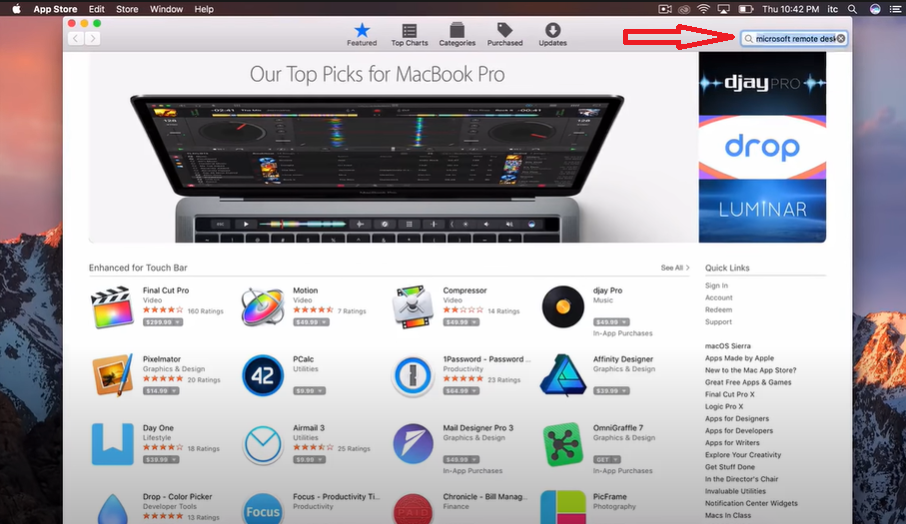
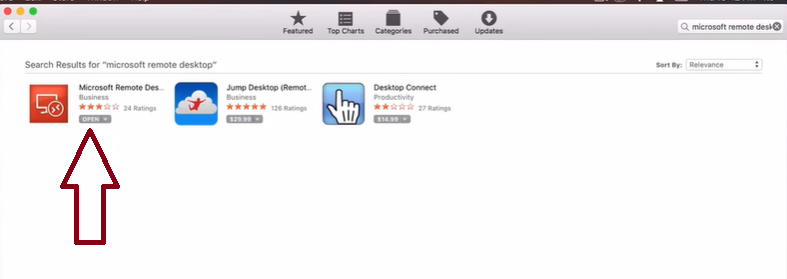
Open the Mac AppStore and Search for “Microsoft Remote Desktop”
Step -2:
Click on Get and wait for the application to download and install.
Step -3:
Also read, A Detailed Guide to Different Types of Web Hosting
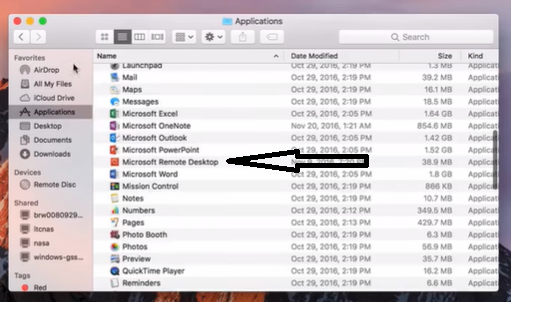
Open the Microsoft Remote Desktop application with the help of the Launchpad. You can also search for the application on your Mac using the shortcut “Command + Spacebar”.
Step -4:
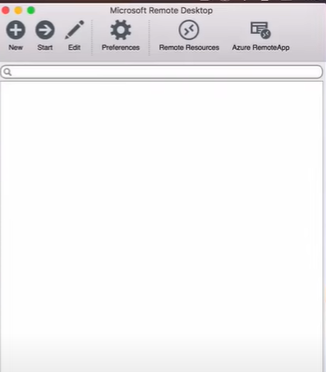
When the Application Window opens, Click on New.
Step -5:
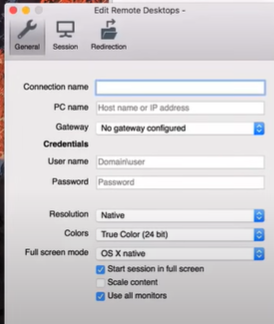
Enter the Connection Name (Any name you wish to give the connection).
Step -6:
Enter the IP Address for PC Name
Step -7:
Enter the correct Login Credentials to your Windows Server and close the window by clicking on the red button
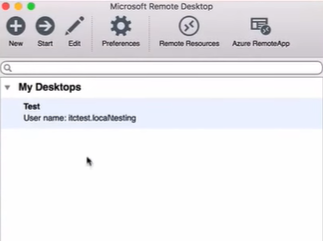
You can now see that your Remote Desktop has been added which you can start by clicking on Start or by double-clicking
Note:
Make sure that you enter the correct Login Credentials for your Windows Server while adding the Remote Desktop on your Mac OS.
Conclusion:
This article shared information about the Windows RDP. And how you can use RDP on your Mac device to view applications, resources, and data from your Windows Server.

Ajay Singh Raghav is a Senior Linux System Administrator at CloudMinister Technologies, where he has spent over 4 years installing, configuring, maintaining, and troubleshooting Linux servers for hosting and cloud environments. He specializes in AWS cloud computing alongside core Linux server administration, with hands-on expertise across server management, backup and restore systems, and cPanel-based hosting environments. His day-to-day experience keeping production servers stable and secure gives him a practical, ground-level understanding of the infrastructure he writes about.