Setting up Zoho Mail for Business correctly the first time saves hours of troubleshooting later, and this guide walks through the entire process end to end. From choosing the right plan to configuring DNS records, verifying your domain, and migrating existing mailboxes, this is a complete, technically accurate walkthrough for anyone deploying Zoho Mail in 2026. Whether you run a five-person startup or a two-hundred-person company, getting Zoho Mail for Business configured properly from day one avoids downtime, deliverability problems, and frustrated employees.
Every business email platform promises simplicity, but the gap between “signing up” and “actually running secure, reliable business email” is where most companies lose time. Zoho Mail for Business is no exception. It’s straightforward to get a mailbox working within minutes, but a mailbox that sends and receives mail is not the same as a properly configured system that authenticates every outgoing message, resists spoofing attempts, and keeps company data organized as the team grows.
This guide is built around that distinction. It doesn’t just cover how to click through the Zoho Mail setup wizard, it walks through why each step exists, what happens when it’s skipped, and where most businesses run into trouble. From selecting the right plan tier to configuring MX records, SPF, DKIM, and DMARC correctly, each phase builds on the one before it, and skipping ahead usually means circling back later to fix something that should have been right the first time.
Whether this is your first time configuring business email or you’re migrating an existing team off another platform, treating this as a structured, sequential project rather than a quick afterthought is what separates a smooth deployment from weeks of troubleshooting deliverability issues down the line. The sections below follow that exact sequence, so you can work through them in order or jump straight to the step you’re currently stuck on.
1. Why Zoho Mail for Business Is Worth Setting Up Correctly in 2026
Business email is no longer just a communication tool, it is core infrastructure, and Zoho Mail has become one of the platforms companies rely on to run that infrastructure securely. Email remains one of the most exploited attack surfaces for small and mid-size companies today.
Business email compromise losses alone exceeded 2.77 billion dollars in a single year according to FBI-reported complaints, and small businesses are targeted at the highest rate of any organization size, receiving malicious email far more often than larger enterprises.|CITE1
That reality alone makes a properly configured Zoho Mail for Business setup, with correct authentication records and sensible admin controls, a genuine business necessity rather than a nice-to-have.
Setting up Zoho Mail for Business is not simply about creating a few mailboxes and calling it done. A rushed setup often skips SPF, DKIM, and DMARC configuration, leaving the domain vulnerable to spoofing and hurting inbox deliverability. Getting the setup right means treating it as a small infrastructure project with defined steps, not a five-minute afterthought squeezed in before a product launch.
Before you begin setting up Zoho Mail for Business, block out at least 60 to 90 minutes and make sure you have access to your domain’s DNS control panel. Most delays come from waiting on domain registrar access, not from Zoho’s own configuration screens.
This guide covers the complete process of deploying Zoho Mail for Business, organized into clear, sequential phases:
- Choosing the right plan for your team size and budget
- Creating your organization account
- Verifying domain ownership through DNS
- Configuring MX, SPF, DKIM, and DMARC records
- Creating user mailboxes and setting admin controls
- Migrating existing email into your new mailboxes
- Configuring mobile and desktop mail clients
- Ongoing maintenance and security best practices
2. Understanding What Zoho Mail for Business Actually Includes
Before touching any settings, it helps to understand exactly what you get when you set up Zoho Mail for Business, since the platform is considerably more than a simple inbox.
Related Reading: Zoho Mail pricing in India: plans, features, and best deals
| Component | What It Does | Why It Matters for Setup |
| Custom domain email | Lets you send and receive mail as [email protected] | Requires DNS verification during setup |
| Admin Console | Central place to manage users, groups, and policies | Where most configuration happens |
| Built-in calendar and contacts | Shared scheduling and contact management | Enabled automatically |
| Zia AI assistance | Writing and inbox assistance features | Optional, toggled per organization |
| Mobile and desktop apps | Native access across devices | Needs IMAP or app-specific setup |
SECURITY NOTE
Because Zoho Mail for Business handles authentication for your entire company domain, admin account credentials deserve the same level of protection as your domain registrar login. Enable two-factor authentication on the admin account before creating any user mailboxes.
3. Step 1: Choosing the Right Plan
Some businesses skip this evaluation entirely and request a Zoho Email Consultation instead, letting a specialist match the plan to actual usage patterns rather than guesswork.
3.1 Comparing the Available Plans
Zoho Mail for Business is offered across several tiers, and choosing correctly at the start avoids a disruptive mid-year upgrade.
- Free plan: Suitable only for very small teams testing the platform, with limited users and storage
- Mail Lite: A lean, cost-effective entry point for small teams that need business email without a full productivity suite
- Mail Premium: Adds larger storage and advanced admin controls for growing teams
- Workplace bundles: Combine business mail with document editors, chat, and collaboration tools
24×7 server management for a fast-growing team should scale in parallel with mailbox count, since more employees generally means more connected devices and a larger attack surface to monitor.
3.2 Matching Plan to Team Size
- Under 10 employees: Mail Lite is typically sufficient for most small-team deployments
- 10 to 50 employees: Mail Premium gives the admin controls this range of business usually needs
- 50+ employees: A Workplace bundle keeps mail alongside collaboration tools in one subscription
- Regulated industries: Choose a tier with the strongest compliance and retention features regardless of team size
Related Reading: why switch from G Suite to Zoho Mail: complete migration guide
Do not over-provision at the start. Plans can be upgraded per user at any time, so it is almost always cheaper to start with a lean tier and scale up than to pay for premium features nobody uses in year one.
If your organization already works with a Web Hosting Company in India for its website, it is worth asking that same partner whether they also provide Server Management Services in India, since domain-level coordination becomes easier when one team already understands your DNS history.
4. Step 2: Creating Your Account
A Zoho Email Consultation booked before this step can help confirm the right data center region and plan tier in advance, avoiding a mid-signup change of mind.
4.1 Sign-Up Process
- Go to the Zoho Mail sign-up page and select the business option rather than the personal email option
- Enter your company name, primary admin email, and a strong password for the admin account
- Select your data center region, since Zoho Mail for Business stores data in the region you choose at signup and this cannot be changed later
- Confirm your organization details, since this becomes the identity tied to your account
A Server Management Services in India provider can advise on latency implications of a given data center region if your infrastructure already runs in a specific location.
4.2 Choosing a Data Center Region
- Select the region closest to your primary user base to reduce latency
- Confirm compliance requirements for your industry before finalizing the region
- Understand that region selection at signup is permanent for that organization
SECURITY NOTE
Use a dedicated, non-personal email address as the recovery contact for your Zoho Mail for Business admin account. If a single employee’s personal email is used as the recovery address and that employee leaves the company, regaining admin access can become a lengthy support process.
Domain verification is exactly the kind of task a Web Hosting Company in India handles routinely, since DNS zones are part of their daily work rather than an occasional task.
5. Step 3: Verifying Domain Ownership
5.1 Why Domain Verification Is Required
Zoho Mail for Business will not activate custom domain email addresses until you prove ownership of the domain. This is a standard anti-abuse measure across every major provider, not something unique to this platform.
- Add the domain you want to use inside the admin console
- Zoho will generate a unique TXT or CNAME verification record
- Log in to your domain registrar or DNS provider and add that record exactly as shown
- Return to the console and click verify once the record has propagated
A Web Hosting Company in India already managing your DNS zone can usually resolve propagation and zone-file issues faster than starting a support ticket with an unfamiliar registrar.
5.2 Common Verification Problems
- DNS propagation delay: Records can take anywhere from a few minutes to 24 to 48 hours to propagate globally
- Typos in the TXT record: Even a single extra character will cause verification to fail
- Using the wrong DNS zone: Some businesses accidentally edit a staging or parked domain zone instead of the live one
- CDN or proxy interference: Some DNS providers proxy records by default, which can hide the raw TXT value from verification checks
If verification is not succeeding after an hour, use a public DNS lookup tool to check whether the TXT record is actually visible from outside your network. This isolates whether the problem is propagation delay or an incorrect record.
Teams without in-house DNS experience sometimes request a Zoho Email Consultation specifically for this stage, since a single incorrect MX priority value can cause days of missed mail before anyone notices the pattern.
6. Step 4: Configuring MX Records
A Server Management Services in India team familiar with your domain’s history can usually locate legacy MX records faster than starting the DNS review from scratch.
6.1 What MX Records Do
MX, or Mail Exchange, records tell the internet where to deliver mail for your domain. Until these are correctly pointed at Zoho’s servers, Zoho Mail for Business cannot receive incoming mail even after domain verification succeeds.
- Remove any existing MX records pointing to a previous provider
- Add Zoho’s MX records exactly as listed in the admin console, including priority values
- Save changes and allow propagation time before testing
- Avoid leaving old and new MX records active simultaneously, since mixed records cause unpredictable delivery
A Zoho Email Consultation is rarely needed for this step alone, but it becomes useful quickly if MX priority conflicts appear alongside other DNS records managed by a Web Hosting Company in India.
6.2 MX Record Priority Explained
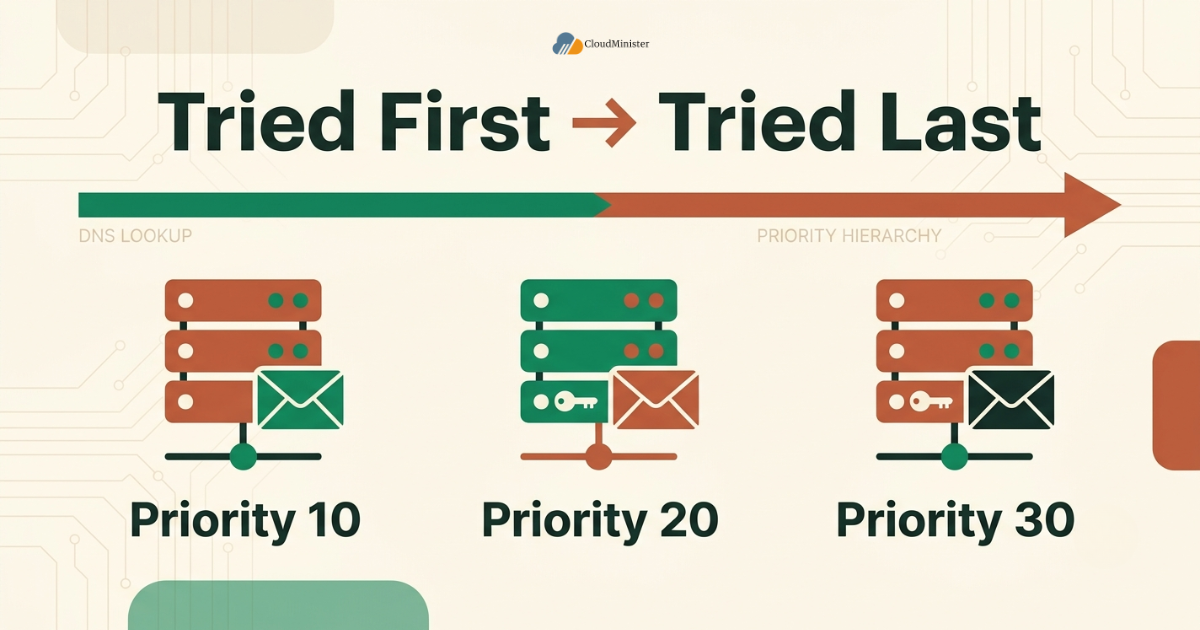
- Lower priority numbers are tried first by sending mail servers
- Zoho typically provides two to three MX records with different priority values for redundancy
- All listed MX records should be added for proper failover
- Do not add unrelated MX records from other services alongside the Zoho records
Zoho Email Solutions that include authentication setup as a standard part of onboarding tend to catch SPF and DKIM misconfigurations before they ever reach production, which is exactly the kind of oversight a rushed self-managed setup often misses.
7. Step 5: Configuring SPF, DKIM, and DMARC
24×7 server management teams sometimes catch SPF include-limit issues before they cause failures, since exceeding ten DNS lookups in an SPF record silently breaks authentication for everyone.
7.1 SPF Setup
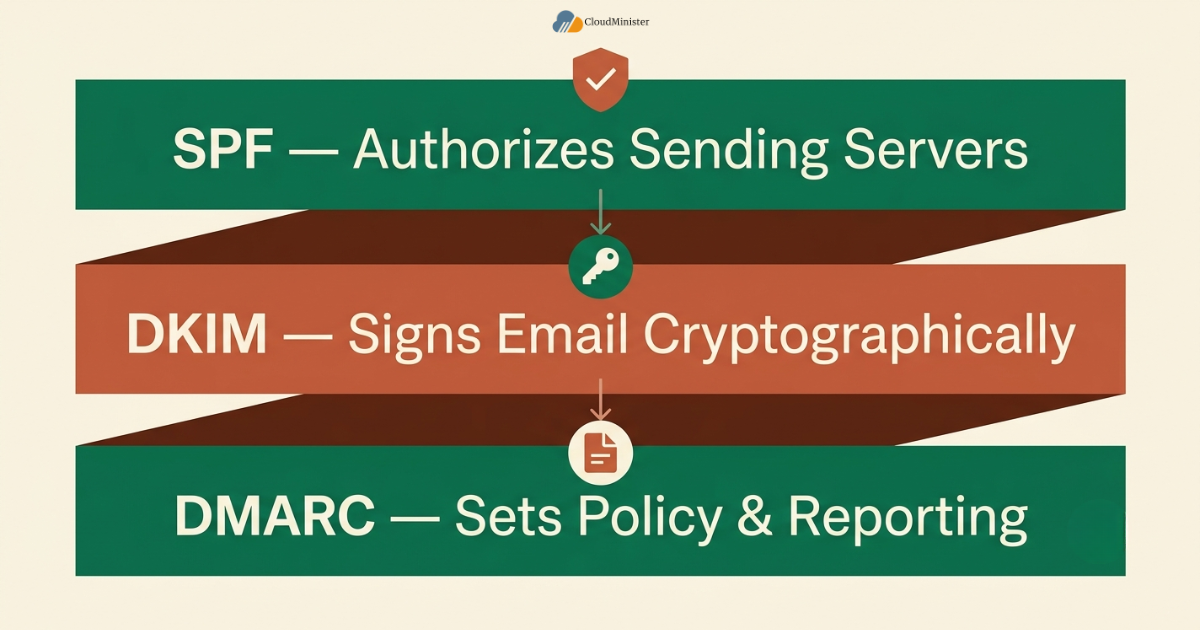
SPF, or Sender Policy Framework, tells receiving mail servers which servers are authorized to send mail on behalf of your domain.
- Add a TXT record authorizing Zoho’s mail servers to send on behalf of your domain
- If an SPF record already exists from a previous provider, merge the Zoho include statement into the existing record rather than creating a duplicate
- Only one SPF record should exist per domain; multiple SPF records will cause validation failures
7.2 DKIM Setup
DKIM, or DomainKeys Identified Mail, adds a cryptographic signature to outgoing mail so receiving servers can confirm it was not altered in transit.
- Generate the DKIM key inside the admin console
- Add the provided CNAME or TXT record to your DNS zone exactly as shown
- Enable DKIM signing for the domain once the record verifies successfully
A Zoho Email Consultation can also help interpret early DMARC reports, which often look confusing to a first-time admin trying to distinguish legitimate third-party senders from genuine spoofing attempts.
7.3 DMARC Setup
DMARC, or Domain-based Message Authentication, Reporting and Conformance, tells receiving servers what to do with mail that fails SPF or DKIM checks, and provides reporting on attempted spoofing.
- Start with a monitoring-only DMARC policy to observe results before enforcing strict handling
- Gradually move toward a quarantine or reject policy once you confirm legitimate mail is passing consistently
- Review DMARC reports periodically to catch spoofing attempts targeting your domain
Phishing remains one of the most persistent cyberattack vectors facing businesses in 2026, with billions of malicious emails sent daily and social engineering involved in the vast majority of successful breaches.|CITE2
Properly configured SPF, DKIM, and DMARC on Zoho Mail for Business is one of the most effective, lowest-cost defenses available against domain spoofing and impersonation attacks.
SECURITY NOTE
Never jump straight to a DMARC reject policy without a monitoring period first. Doing so risks silently blocking legitimate mail from marketing tools or CRM systems that also send on behalf of your domain.
Larger rollouts often benefit from a Zoho Email Consultation at this stage, since bulk provisioning and group policy design are easy to get right the first time with guidance and tedious to fix retroactively across dozens of mailboxes.
8. Step 6: Creating User Mailboxes and Admin Controls
A Zoho Email Consultation can also help decide which admin controls to enforce from day one versus which ones can wait until the team grows larger.
8.1 Adding Users
- Use the bulk import option inside the admin console when onboarding many employees at once
- Assign each user an appropriate storage quota based on their role
- Set temporary passwords and require a password change on first login
- Organize users into groups or departments for easier policy management later
24×7 server management covering the admin console’s underlying infrastructure ensures that security policy changes actually apply reliably rather than silently failing during a server hiccup.
8.2 Admin Console Controls Worth Configuring Early
- Password policy: Enforce minimum complexity and expiration rules organization-wide
- Two-factor authentication: Require it for every mailbox, not just the admin account
- Email retention and archival: Configure retention policies appropriate to your industry
- Mobile device management: Control which devices can sync company mailboxes
- Distribution lists and group aliases: Set up shared addresses like info@ or support@
Related Reading: how SMEs are reducing email costs using Zoho Mail
Migration is often where Zoho Email Solutions earn their value most clearly, since a specialist has already handled the edge cases, duplicate folders, and oversized attachments that a first-time admin encounters for the first time mid-project.
9. Step 7: Migrating Existing Email
A Web Hosting Company in India that offers Zoho Email Solutions as part of its service catalog typically bundles migration planning support at no extra charge, which reduces the pressure to get every detail right on the first attempt alone.
Scheduling migration during a maintenance window already covered by Server Management Services in India reduces the chance of the two overlapping and compounding any downtime.
9.1 Migration Planning
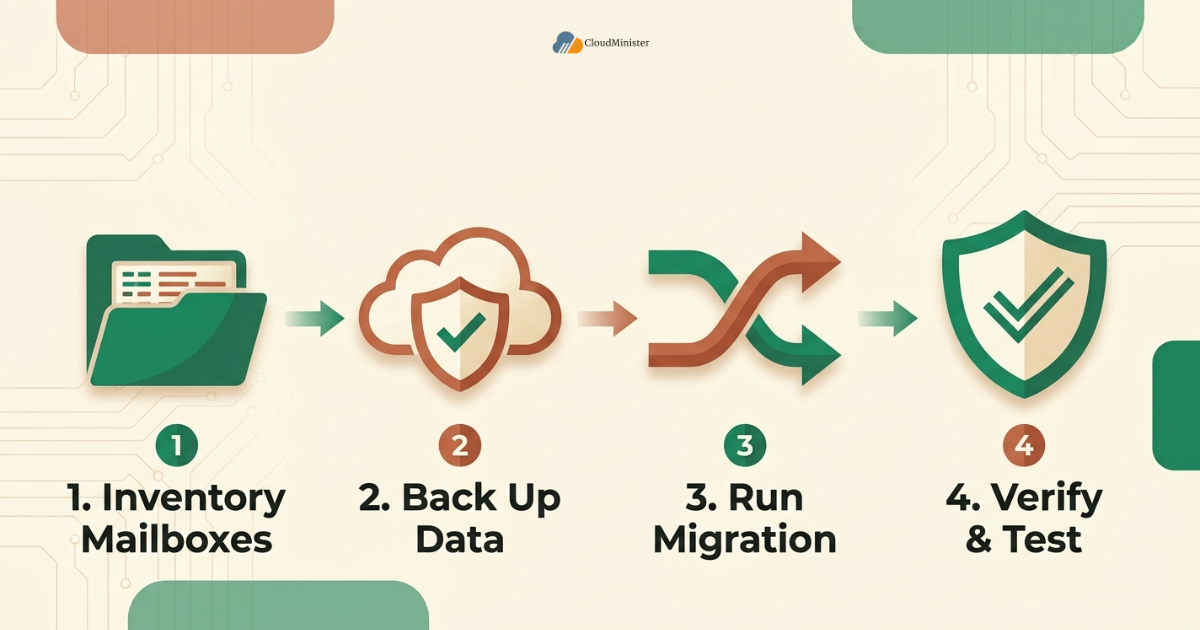
- Inventory existing mailboxes, folder structures, and total data volume before starting migration
- Choose a migration window with minimal business disruption, typically a weekend or evening
- Communicate the migration timeline to all employees in advance
- Back up existing mail independently before starting any migration, regardless of how reliable the migration tool is
A Server Management Services in India provider can also confirm that server-side email routing rules on your website’s contact forms will continue working correctly once mail moves to a new platform.
9.2 Using Zoho’s Migration Tools
- Zoho Mail for Business includes native migration wizards for Gmail, Outlook, and IMAP-based providers
- Authenticate the source account when prompted and select the mailboxes to migrate
- Monitor migration progress from the admin console and verify a sample of migrated mail for completeness
- Keep the old mail service active in read-only mode for a short overlap period after cutover
Related Reading: Zoho Mail vs Outlook: feature and cost comparison for teams
PRO TIP
Migrate a small pilot group, such as the IT team, first before migrating the entire company. This surfaces configuration issues on a small, technically capable group rather than the whole organization at once.
10. Step 8: Configuring Mail Clients and Mobile Access
If webmail access is slow, the cause is sometimes unrelated to the mail provider entirely and instead traces back to the underlying server; this is another reason 24×7 server management matters even for issues that initially look like an email problem.
10.1 Webmail Access
- Zoho Mail for Business is accessible directly through a browser with no additional configuration required
- Bookmark the correct regional login URL based on the data center selected at signup
- Enable browser notifications for real-time alerts on new mail
A Server Management Services in India team can confirm the correct SMTP port is open on your firewall if a desktop client fails to send despite correct credentials.
10.2 IMAP and POP Configuration
- The platform supports both IMAP and POP for third-party mail clients
- IMAP is generally recommended over POP since it keeps mail synchronized across multiple devices
- Use the exact IMAP and SMTP server addresses provided in the documentation, along with the correct port and encryption settings.
- Generate an application-specific password for each mail client when two-factor authentication is enabled
10.3 Mobile App Setup
- Download the official Zoho Mail app for iOS or Android
- Sign in using organizational credentials
- Enable push notifications and configure sync frequency based on how time-sensitive your team’s communication is
- Apply mobile device management policies from the admin console if your organization requires them
Deliverability testing is another area where Zoho Email Solutions pay off, since a specialist recognizes authentication failures that look cosmetic but actually signal a deeper DNS problem worth fixing before launch.
11. Step 9: Post-Setup Testing and Verification
A Zoho Email Consultation is a reasonable next step if deliverability testing repeatedly fails despite correct-looking DNS records, since a specialist can often spot subtle misconfigurations that are easy to miss when reviewing your own setup.
11.1 Deliverability Testing
- Send test emails to and from major providers such as Gmail and Outlook to confirm reliable delivery
- Use a mail authentication testing tool to confirm SPF, DKIM, and DMARC are all passing correctly
- Check that outbound mail is not landing in recipient spam folders
- Verify that reply-to and display name settings appear correctly on outgoing mail
Zoho Email Solutions bundled with a final walkthrough of this checklist gives a business extra confidence that nothing was missed before the old mail provider is fully decommissioned.
11.2 Functional Checklist
- All planned users can log in successfully
- Shared distribution lists and group aliases route mail correctly
- Calendar invitations send and appear correctly across mobile and desktop
- Migrated historical mail is present, searchable, and correctly organized
- Mobile devices sync new mail promptly after setup is complete

12. Ongoing Maintenance for Zoho Mail for Business
24×7 server management during this ongoing maintenance phase means someone is actively watching mail flow, DNS health, and server performance together rather than waiting for a user complaint to surface a problem.
12.1 Routine Admin Tasks
- Review user accounts quarterly and deactivate accounts for departed employees promptly
- Rotate application-specific passwords periodically for any connected third-party tools
- Monitor storage usage across the organization and adjust quotas as needed
- Review DMARC reports on a recurring schedule to catch new spoofing attempts
A Web Hosting Company in India with an established Zoho Email Solutions track record is generally a safer long-term choice than a generic freelancer, since ongoing support and accountability matter as much as the initial setup itself.
12.2 When to Bring In Outside Help
Not every business has an in-house IT team comfortable managing DNS records, authentication policies, and ongoing mailbox administration. This is where working with a specialist becomes genuinely valuable rather than optional. Requesting aZoho Email Consultation early in the process can shorten setup time considerably, particularly for businesses with complex DNS environments or multiple domains.
A Zoho Email Consultation is also useful when migrating a large or particularly messy legacy mail environment into Zoho Mail for Business, since an experienced team can flag issues a first-time admin might miss entirely.
Beyond initial setup, many growing businesses eventually want their email infrastructure watched and maintained continuously rather than checked in on occasionally. 24×7 server management for the broader infrastructure a business depends on, not just the mail platform itself, becomes increasingly important as a company scales past a handful of employees and cannot afford unplanned downtime.
Zoho Email Solutions delivered alongside broader infrastructure support give a business one coherent environment instead of several disconnected vendors handling different pieces of the stack.
RELATED READING: Zoho Mail pricing in India: plans, features, and best deals
13. Choosing the Right Infrastructure Partner
A Web Hosting Company in India offering 24×7 server management alongside Zoho Email Solutions gives a business one place to raise any issue, whether it touches the mail platform, the DNS zone, or the underlying server.
13.1 Why Partner Choice Matters
Setting up Zoho Mail for Business is only one part of running reliable business infrastructure. The domain, DNS, and often the website itself sit on hosting infrastructure that needs to be equally reliable, secure, and well-supported.
- A domain with poorly managed DNS undermines even a perfectly configured mail setup
- Downtime on the hosting side can create confusion when users assume the mail platform itself is failing
- Working with one accountable partner across hosting and email reduces finger-pointing when something goes wrong
24×7 server management also covers routine patching and uptime monitoring for the website and any connected applications, work that has nothing to do with email directly but still affects how reliably a business operates day to day.
13.2 What a Good Infrastructure Partner Offers
- Direct support for DNS changes needed during setup and later maintenance
- LINK_SERVER that keep the surrounding infrastructure, not just email, monitored and patched
- Clear escalation paths when an issue spans both hosting and mail configuration
- Local support hours and time zone alignment for businesses operating primarily in India
Cloudminister operates as a Web Hosting Company in India offering domain, hosting, and infrastructure support that complements a Zoho Mail for Business deployment rather than competing with it. Businesses already hosting their website with a Web Hosting Company in India often find it simpler to manage DNS changes required for the mail setup, since the same support team already has context on the domain’s existing configuration.
A Web Hosting Company in India that also understands mail authentication requirements can meaningfully shorten the time it takes to get SPF, DKIM, and DMARC correctly configured.
LINK_SERVER extend this relationship past the initial setup phase. Once Zoho Mail for Business is live, the servers hosting your website, applications, and any connected systems still need patching, monitoring, and security updates on an ongoing basis.
LINK_SERVER that include proactive monitoring catch infrastructure issues before they cascade into email deliverability problems or downtime that gets mistakenly blamed on the mail platform itself. Businesses that pair LINK_SERVER with their email deployment typically experience fewer unexplained outages overall, since one team has visibility across the full stack rather than two disconnected vendors each managing a narrow slice of the infrastructure.
24×7 server management matters here specifically because email-related infrastructure issues rarely happen conveniently during business hours. A DNS misconfiguration discovered at midnight, or a spike in outbound mail that triggers a spam filter over a weekend, needs a response before it affects the next business day.
Zoho Email Solutions paired with round-the-clock infrastructure monitoring gives growing companies coverage that a single in-house IT generalist usually cannot match alone.
For businesses that want expert guidance rather than a fully self-managed setup, a Zoho Email Consultation from a team that also understands the surrounding hosting environment removes much of the guesswork described throughout this guide.
A Zoho Email Consultation can cover plan selection, DNS configuration, migration planning, and security policy setup in a single engagement, which is often faster than working through each phase independently.
Cloudminister positions itself as a Web Hosting Company in India that supports exactly this kind of combined engagement, pairing Zoho Email Solutions with dedicated Server Management Services in India under one working relationship.
EXPERT NOTE
Businesses evaluating aWeb Hosting Company in India for ongoing support should confirm that the same team can assist with both DNS-level changes required by Zoho Mail for Business and general Server Management Services in India for the rest of the infrastructure. A disjointed setup, where email support and server support sit with two unrelated vendors, tends to slow down troubleshooting whenever an issue touches both areas at once.
13.3 How Zoho Email Solutions and Server Support Work Together
Zoho Email Solutions generally refers to the full package of setup, configuration, and support that goes into keeping business email running smoothly, not just the initial installation. When Zoho Email Solutions are handled by a team that also runs 24×7 server management, coordination between the two areas happens naturally instead of requiring a separate call every time an issue touches both.
- Zoho Email Solutions typically include plan selection guidance, DNS record configuration, and migration support in one package
- 24×7 server management usually covers patching, monitoring, backups, and uptime tracking for the servers behind a company’s website and applications
- A Web Hosting Company in India offering both under one roof removes the coordination overhead of managing two separate vendor relationships
- A Server Management Services in India contract that includes after-hours monitoring catches problems long before most employees are awake to notice them
Businesses evaluating Zoho Email Solutions should ask specifically whether ongoing 24×7 server management is included or billed separately, since the two are often bundled differently across providers. A Web Hosting Company in India that bundles Zoho Email Solutions with Server Management Services in India as a single subscription tends to be easier to budget for than piecing together multiple vendor invoices every month.
Requesting a Zoho Email Consultation before signing any long-term contract is a reasonable way to compare what different providers actually include under the umbrella of Zoho Email Solutions versus what gets billed as an add-on later. A short Zoho Email Consultation call can also clarify whether a business needs full 24×7 server management from day one or can start with a lighter support tier and upgrade once the mail platform and website are both stable.
For businesses still deciding between providers, comparing a few options and asking each one for a Zoho Email Consultation is a low-cost way to see how responsive their support team actually is before committing. The quality of that first Zoho Email Consultation conversation is often a reasonable predictor of how 24×7 server management will be handled once a contract is signed and real issues start coming in.
A Web Hosting Company in India with a transparent process for Zoho Email Solutions and 24×7 server management, including clear escalation timelines, gives a business confidence that support will actually show up when something breaks rather than sitting in a ticket queue for days. This is particularly relevant for Server Management Services in India covering production systems, where even a short outage can have a measurable business impact.
14. Common Mistakes When Setting Up Zoho Mail for Business
- Skipping DMARC entirely: Many businesses configure SPF and DKIM but never add a DMARC record, leaving a meaningful gap in protection against domain spoofing
- Leaving old MX records active: Running the new platform alongside a previous provider’s MX records causes unpredictable, hard-to-diagnose delivery failures
- Weak admin account security: Failing to enable two-factor authentication on the admin account leaves the entire organization’s email exposed through a single point of failure
- No migration backup: Skipping an independent backup before migrating is a risk with no real upside, since backups cost little time relative to the risk of data loss
- Ignoring mobile device policy: Allowing unrestricted device access to company mailboxes without any mobile management policy increases the risk of data exposure if a device is lost or stolen
- Treating setup as one-time: Zoho Mail for Business, like any business system, needs periodic review of users, policies, and authentication records rather than a single setup and forget approach
Before finalizing the checklist below, it is worth confirming that Zoho Email Solutions and 24×7 server management coverage, if applicable, both match what was agreed with your provider, since gaps here tend to surface only after something has already gone wrong.
15. Readiness Checklist for Zoho Mail for Business
- Plan selected: The right tier chosen based on team size and required features
- Domain verified: Ownership confirmed through the required DNS TXT or CNAME record
- MX records configured: All Zoho-provided MX records added with correct priority values
- SPF configured: A single, correctly merged SPF record authorizing outbound mail
- DKIM configured: Signing enabled and verified inside the admin console
- DMARC configured: A monitoring policy in place, with a plan to move toward enforcement over time
- Users created: All employee mailboxes provisioned with appropriate storage and group assignments
- Security policies applied: Two-factor authentication and password policies enforced organization-wide
- Migration completed and verified: Historical mail confirmed present and searchable after migration
- Mail clients configured: Webmail, mobile apps, and any third-party clients tested and working
- Deliverability tested: Test emails sent and received successfully with authentication checks passing
- Ongoing support confirmed: A plan in place for continued DNS, security, and infrastructure support beyond initial setup
Key Takeaways
- Setting up Zoho Mail for Business correctly requires sequential configuration of domain verification, MX records, SPF, DKIM, and DMARC, not just mailbox creation
- Business email remains one of the most targeted attack surfaces for small and mid-size companies, making correct authentication configuration a genuine security requirement rather than an optional step
- Choosing the right plan tier at the outset avoids a disruptive mid-year upgrade as the team grows
- A monitoring-first approach to DMARC prevents legitimate mail from being blocked while still moving toward stronger domain protection over time
- Migrating a small pilot group before a full company-wide migration surfaces configuration issues early and safely
- Working with a Web Hosting Company in India that also offers Server Management Services in India simplifies the DNS and infrastructure side of a Zoho Mail for Business deployment
- A Zoho Email Consultation can meaningfully shorten setup time for businesses with complex domain environments or multiple legacy mail providers to migrate
- Ongoing maintenance, including quarterly account reviews and periodic DMARC report checks, keeps a Zoho Mail for Business deployment secure well after the initial setup is complete
- 24×7 server management for the surrounding infrastructure reduces the chance that unrelated hosting issues get mistakenly blamed on the mail platform
- Treating Zoho Mail for Business setup as a structured project with a defined checklist, rather than an afterthought, is what separates smooth deployments from ones that generate weeks of support tickets
A quick Zoho Email Consultation at the start of the process, paired with clarity on whether 24×7 server management is included, prevents most of the surprises that turn a simple email migration into a multi-week support saga.
Need Help Setting Up Zoho Mail for Business?
Our team can handle DNS configuration, domain verification, and migration so your business email is secure and running smoothly from day one.
Conclusion
Setting up Zoho Mail for Business does not need to be complicated, but it does require following the steps in the right order and understanding why each one matters. Domain verification, MX records, SPF, DKIM, and DMARC are not optional extras, they are the foundation that determines whether your business email is secure, reliable, and properly authenticated from day one.
Businesses that treat this as a structured project, working carefully through plan selection, DNS configuration, user provisioning, migration, and testing, consistently end up with a smoother, more secure deployment than those that rush through setup and troubleshoot problems after the fact.
The businesses that get the most value from Zoho Mail for Business are the ones that also think about the infrastructure surrounding it. A well-configured mail platform still depends on properly managed DNS, a reliable hosting environment, and a support team that can respond quickly when something goes wrong outside normal business hours.
Cloudminister supports exactly this combination, offering a Zoho Email Consultation for businesses setting up or migrating to Zoho Mail for Business, alongside its work as a Web Hosting Company in India and its Server Management Services in India for the infrastructure that keeps everything else running.
Whether your business needs help with initial setup, ongoing Zoho Email Solutions, or dependable 24×7 server management for the rest of your infrastructure, working with one accountable partner keeps the process simpler and the support consistent as your business grows.
Frequently Asked Questions
How long does it take to set up Zoho Mail for Business?
A straightforward setup, including DNS verification, MX records, and SPF, DKIM, and DMARC configuration, typically takes 60 to 90 minutes of active work, though DNS propagation can add several hours before everything is fully live.
Is Zoho Mail for Business suitable for very small teams?
Yes, it scales down effectively to small teams and even solo founders, with lean plan tiers that provide custom domain email without the cost of a full productivity suite.
Do I need technical expertise to set up Zoho Mail for Business myself?
Basic DNS knowledge is helpful, but the admin console is designed for people without deep technical backgrounds. For complex domain environments or large migrations, a Zoho Email Consultation can remove most of the guesswork.
What happens if I skip DMARC when setting up Zoho Mail for Business?
Skipping DMARC leaves a meaningful gap in protection against domain spoofing, since SPF and DKIM alone do not tell receiving servers what action to take when authentication fails. A monitoring-only DMARC policy is a safe starting point for any deployment.
Can I migrate from Gmail or Outlook to Zoho Mail for Business without losing data?
Yes, native migration tools exist for Gmail, Outlook, and IMAP-based providers, but an independent backup before migration is strongly recommended regardless of which tool is used.
Should Zoho Mail for Business setup be handled alongside broader infrastructure support?
It is generally a good idea. Pairing this kind of deployment with aWeb Hosting Company in India that also offersServer Management Services in India and 24×7 server management reduces the chance of DNS conflicts and gives a business one accountable partner for both email and hosting infrastructure.

Ajay Singh Raghav is a Senior Linux System Administrator at CloudMinister Technologies, where he has spent over 4 years installing, configuring, maintaining, and troubleshooting Linux servers for hosting and cloud environments. He specializes in AWS cloud computing alongside core Linux server administration, with hands-on expertise across server management, backup and restore systems, and cPanel-based hosting environments. His day-to-day experience keeping production servers stable and secure gives him a practical, ground-level understanding of the infrastructure he writes about.